Silently install uBlock Origin in Edge with Intune


General Introduction

In March, I wrote about managing Chrome extensions in Intune. I wanted to touch briefly on Edge, focusing on silently installing uBlock Origin on clients.

uBlock Origin is one of the best “ad content blockers” we have and the one I use the most. It’s also one of the important things that should be deployed when you manage an environment. Today, we’ll see how to install it silently on Edge.

If you already have a policy with your Edge settings, consider adding the setting below to the existing ones.

How to

  • Open the Intune portal, then navigate to Windows, then Configuration profiles, or click on the link below:
    Windows – Microsoft Intune admin center
  • Click on Create, then New Policy.
  • Under Platform, select Windows 10. Under profile type, select Settings catalog. This can also be done via Administrative templates if you prefer. The logic below remains the same.
  • Name the policy and create a description.
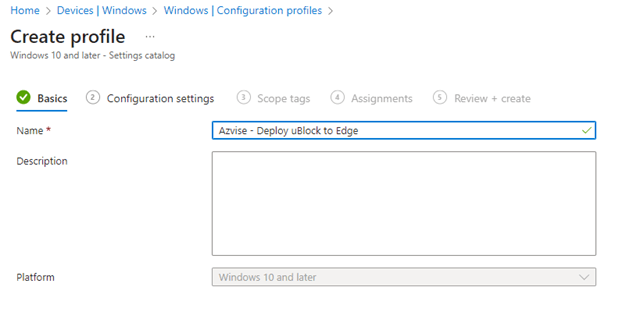
  • Click on Add settings, then search for Control which extensions are installed silently.
  • If you apply policies to computers, select the one I used. Otherwise, if you usually scope to users, select the second one.
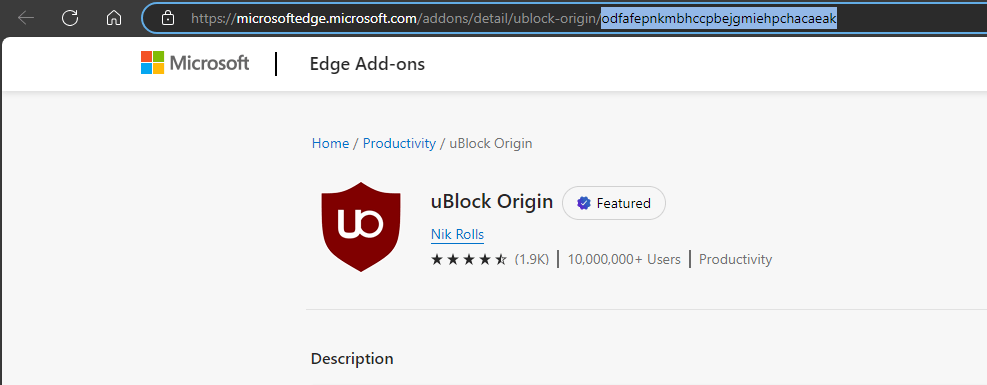
  • Now, we have to find the Extension ID. Open the Edge Add-ons store and search for uBlock Origin, or open the link below:
    uBlock Origin – Microsoft Edge Addons
  • The ID will be the last part of the URL that we found. In our case odfafepnkmbhccpbejgmiehpchacaeak
  • Add it to the Extension ID list
  • Now click Next, then assign Scope tags if you are using them, then click Next.
  • Assign the policy to the computers or users of your organization. What you choose will be based on whether you decided for Control which extensions are installed silently (computers), or Control which extensions are installed silently (User) (users). As always, I’d strongly recommend testing changes before deploying policies to the organization.
  • Once you are done, click Next, then Create.
  • If the users use multiple profiles, the extension will be active for all of them.  
  • The users will not be able to remove the extension.


Configure Microsoft Tunnel to use two NICs (Ubuntu)


General introduction

Microsoft Tunnel is a VPN gateway for Microsoft Intune. It runs within a container environment on a Linux host and allows secure access to on-premises resources for Android and iOS devices.

When you configure Microsoft Tunnel, you’ll find in the official documentation the following phrase:

Configure multiple NICs per server (Optional): We recommend using two Network Interface controllers (NICs) per Linux server to improve performance, though use of two is optional.

Since I found no public reference to sample configurations, I wanted to share my Linux network configuration to save some time for others. For the networking part, because I’m using Ubuntu 22.04 for this demo, everything is managed by netplan.

For context, the two NICs we’ll configure will be one public facing and one in the internal network. The VM is hosted on a local hypervisor in my network.

Steps

First, get the name of your interfaces by running ip a or lshw -C network and note them down. In my lab, the two NICs are ens160 and ens192.

# Get the available NICs
lshw -C network

Then, we have to identify the default netplan file

# Move to the netplan folder
cd /etc/netplan
# Get the available config files
ls

In my case, the file was called /etc/netplan/50-cloud-init.yaml

# Edit the default config file using your favourite text editor. For this example, we'll use nano
nano /etc/netplan/50-cloud-init.yaml

Now paste the following inside the configuration after making the following changes:

  • Under ens160 -> addresses, replace X.X.X.X with your public IP address and /27 with your subnet mask
  • Under ens160 -> nameservers -> addresses, replace 1.1.1.1,8.8.8.8 with your nameservers
  • Under ens160 -> routes -> via, replace Y.Y.Y.Y with your gateway IP
  • Under ens192 -> addresses, replace 10.0.0.4 with your private IP address and /27 with your subnet mask
  • Under ens192 -> nameservers -> addresses, replace 1.1.1.1,8.8.8.8 with your nameservers
  • Under ens160 -> routes -> to, replace 192.168.1.0/24 with the on-prem network hosting your applications.
  • Under ens160 -> routes -> via, replace 10.0.0.1 with the gateway of the IP you configured under under ens192 -> addresses
This is the network config written by 'subiquity'
network:
  ethernets:
    ens160:
      dhcp4: no
      addresses: [X.X.X.X/27]
      nameservers:
        addresses: [1.1.1.1,8,.8.8.8]
      routes:
      - to: default
        via: Y.Y.Y.Y
    ens192:
      dhcp4: no
      addresses: [10.0.0.4/27]
      nameservers:
        addresses: [1.1.1.1,8,.8.8.8]
      routes:
      - to: 192.168.1.0/24
        via: 10.0.0.1
  version: 2

Then, run the following command to check that everything went well:

netplan generate

Apply the network config and check that the configuration was applied:

netplan apply
ip a

Finally, restart the Microsoft Tunnel, if already installed:

mst-cli server restart

Configure Chrome Extensions in Intune using Administrative Templates – Intune


General introduction

In March 2022, Intune added support for Chrome Administrative Templates. This allows for further customization of your Chrome installation without needing the custom ADMX and the OMA-URIs.

This post will show how to configure the silent installation of an extension in Chrome using Administrative Templates. If you are using ADMX policies, consider switching to this or Settings Catalogs. If you are already leveraging Settings Catalogs, you should go that way and build this policies as settings catalogs.

  1. General introduction
  2. How to silently force extensions
    1. Microsoft’s description of the policy
  3. Other useful extension settings
    1. Only allow approved extensions
    2. Block external extensions


How to silently force extensions

  • Open endpoint.microsoft.com
  • Click on Devices, then on Configuration Profiles.
  • Select Create Profile, then on platform click on Windows 10 and later.
  • The profile type will be Templates. Then select Administrative Templates.
  • Click on Create, then give the policy a name.
  • Under Computer Configuration, select Google, then select either Google Chrome or Google Chrome – Default settings. The first will not let users modify the policies; the second will give users freedom to change the settings you set. You’ll usually go with the first one.
  • Click Extensions, then select Configure the list of force-installed apps and extensions.
  • Once you have the policy open, you’ll need to set it to Enabled, then insert the Extension ID of the extension you want to provision. For this article, I’ll be using uBlock Origin, which I highly suggest, and has cjpalhdlnbpafiamejdnhcphjbkeiagm as ID.
  • If you want to retrieve the ID of an extension, head to the Chrome web store and search for the app you wish to install. From there, look at the address bar. The end of the URL is the ID you are looking for. Refer to the screenshot below.
    If you want to retrieve the ID of an extension, head to the Chrome web store, and search for the app you wish to install. From there, look at the address bar. The end of the URL is the ID you are looking for. In our example, the ID is cjpalhdlnbpafiamejdnhcphjbkeiagm, as shown in the picture below.
  • Sometimes the Chrome web store attaches a “?hl=XX” at the end of the URL, which references the host language. XX in this example can be something like it, de, or similar, depending on your host language. This is NOT part of the ID and should not be copied over to Intune.
  • Once you have pasted your IDs into the Intune policy, click Ok, then Next.
  • From there on, scope the policy as needed in the Assignments tab, click Next, and Create.

Microsoft’s description of the policy

Here is Microsoft’s description of the policy “Configure the list of force-installed apps and extensions”:

Setting the policy specifies a list of apps and extensions that install silently, without user interaction, and which users can’t uninstall or turn off. Permissions are granted implicitly, including for the enterprise.deviceAttributes and enterprise.platformKeys extension APIs. (These 2 APIs aren’t available to apps and extensions that aren’t force-installed.) Leaving the policy unset means no apps or extensions are autoinstalled, and users can uninstall any app or extension in Google Chrome. This policy superseeds ExtensionInstallBlocklist policy. If a previously force-installed app or extension is removed from this list, Google Chrome automatically uninstalls it. On Microsoft® Windows® instances, apps and extensions from outside the Chrome Web Store can only be forced installed if the instance is joined to a Microsoft® Active Directory® domain, running on Windows 10 Pro, or enrolled in Chrome Browser Cloud Management. On macOS instances, apps and extensions from outside the Chrome Web Store can only be force installed if the instance is managed via MDM, or joined to a domain via MCX. The source code of any extension may be altered by users through developer tools, potentially rendering the extension dysfunctional. If this is a concern, set the DeveloperToolsDisabled policy. Each list item of the policy is a string that contains an extension ID and, optionally, an “update” URL separated by a semicolon (;). The extension ID is the 32-letter string found, for example, on chrome://extensions when in Developer mode. If specified, the “update” URL should point to an Update Manifest XML document ( https://developer.chrome.com/extensions/autoupdate ). By default, the Chrome Web Store’s update URL is used. The “update” URL set in this policy is only used for the initial installation; subsequent updates of the extension use the update URL in the extension’s manifest. Note: This policy doesn’t apply to Incognito mode. Read about hosting extensions ( https://developer.chrome.com/extensions/hosting ). Example value: aaaaaaaaaaaaaaaaaaaaaaaaaaaaaaaa;https://clients2.google.com/service/update2/crx abcdefghijklmnopabcdefghijklmnop


Other useful extension settings

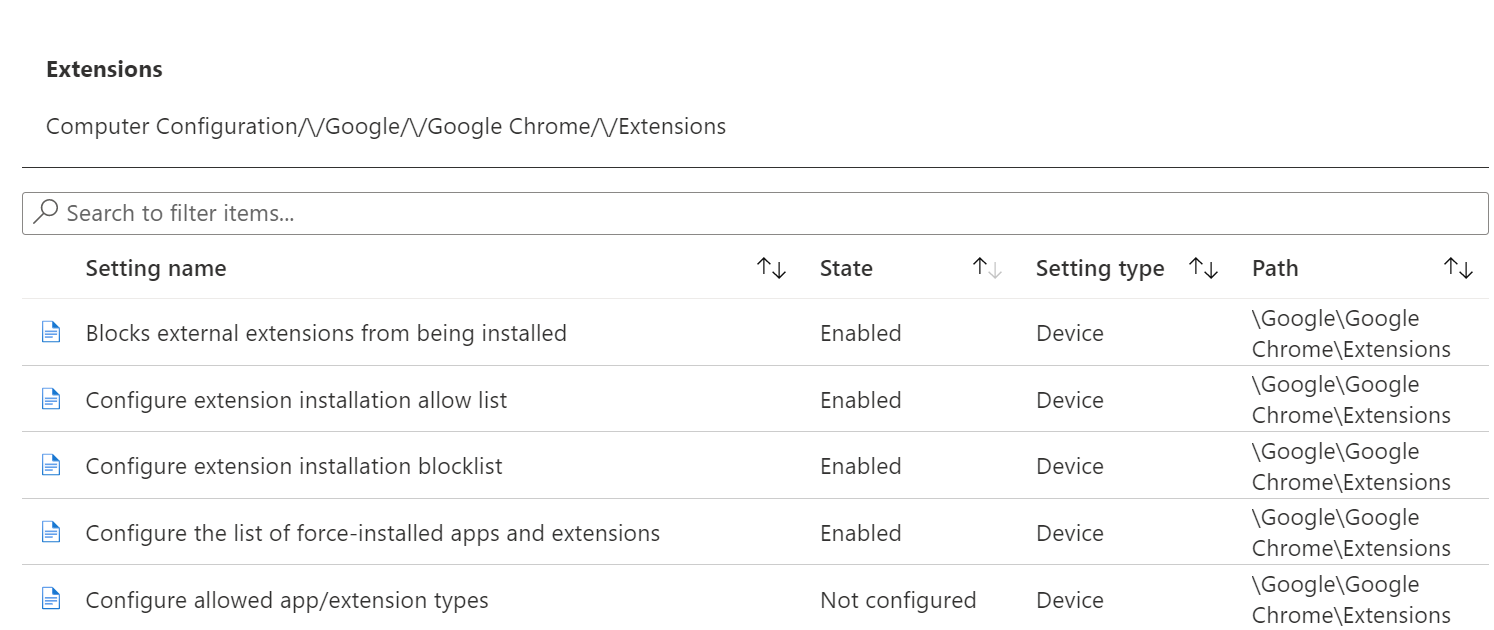
A basic Chrome extension configuration is usually set like this. You’ll block external extensions from being configured, you’ll only allow installing corporate-allowed applications, and you’ll force some extensions to the devices. Here you can find the policies’ names:

  • Blocks external extensions from being installed
  • Configure extension installation allow list
  • Configure extension installation blocklist
  • Configure the list of force-installed apps and extensions

Only allow approved extensions

First, we are going to configure the two following policies:

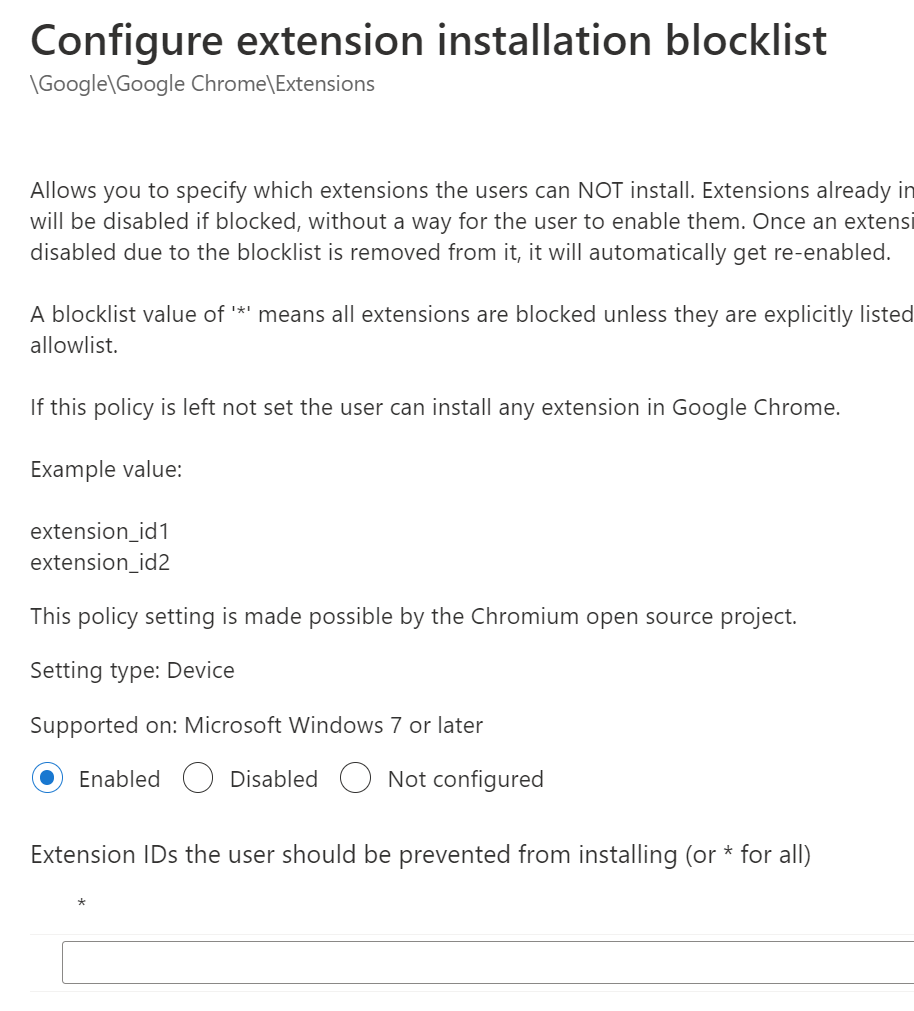
  • Configure extension installation allow list
  • Configure extension installation blocklist

The first one will be the allow list, and then we are going to block everything else from being run. The extensions you forced before with the silent install are automatically allowed. I’d still advise for adding them to this policy using the ID you retrieved before.

Use the following screenshot for reference.

The blocklist is usually configured as *, meaning any. All the allow-listed and forced extensions will be automatically excluded and take precedence. If you just wish to block some applications, paste the ID of the extensions you wish to block.

Block external extensions

Last but not least, let’s block external extensions. These are applications that can be manually packaged and installed into browsers. If you are not actively deploying some in your organization, I’d suggest blocking them.