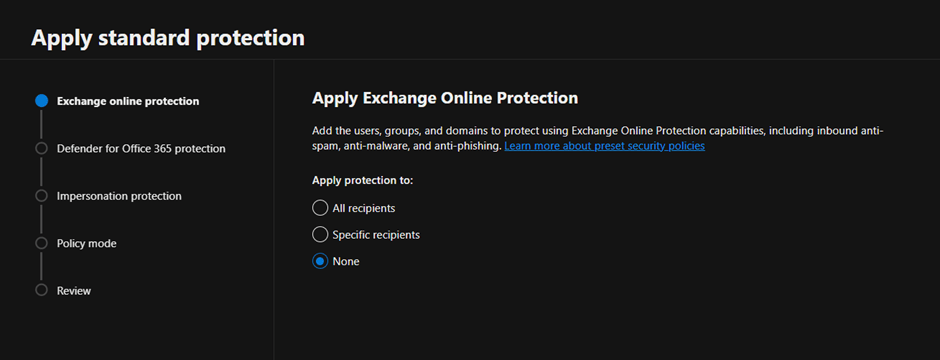
The following policies named “Standard Recommended Policy” or “Strict Recommended Policy” already exist


General Introduction

On a customer implementation I found the following error while trying to configure the Microsoft Baselines for Defender for Office 365:

The follow policies named “Standard Recommended Policy” or “Strict Recommended Policy” already exists. Please remove it first. HostedContentFilterPolicy


Guide

To fix the issue first open PowerShell and connect to Exchange Online. If you don’t have the module installed launch the following commands:

Set-ExecutionPolicy RemoteSigned
Install-Module PowershellGet
Install-Module -Name ExchangeOnlineManagement

Then connect to connect to Exchange Online with Powershell run the following command, modifying the username first:

Connect-ExchangeOnline -UserPrincipalName admin@azvise.com

Then run:

Get-HostedContentFilterPolicy

This will show the currently configured policies.

If you already have a Standard Preset Security Policy run the following to remove it:

Get-HostedContentFilterPolicy | Where Name -eq "Standard Preset Security Policy" | Remove-HostedContentFilterPolicy

If you already have a Strict Preset Security Policy run the following to remove it:

Get-HostedContentFilterPolicy | Where Name -eq "Strict Preset Security Policy" | Remove-HostedContentFilterPolicy

This should fix the issue. When you refresh your browser you should be able to configure the Preset Policies. Once completed, the new policies will show up.

Block User Consent for applications in Entra ID


General Introduction

In Microsoft 365, users have the ability to consent to applications that interact with their data. However, attackers have taken advantage of this by tricking users into granting access to their data. To prevent this, in Entra ID administrators can configure which apps users can consent to and which require administrator review.

There are three options for managing user consent:

  • Do not allow user consent.
  • Allow user consent for apps from verified publishers for selected permissions.
  • Allow user consent for all apps.

I suggest against the latter (the default value for new tenants) as it leaves the organization vulnerable to phishing attempts.

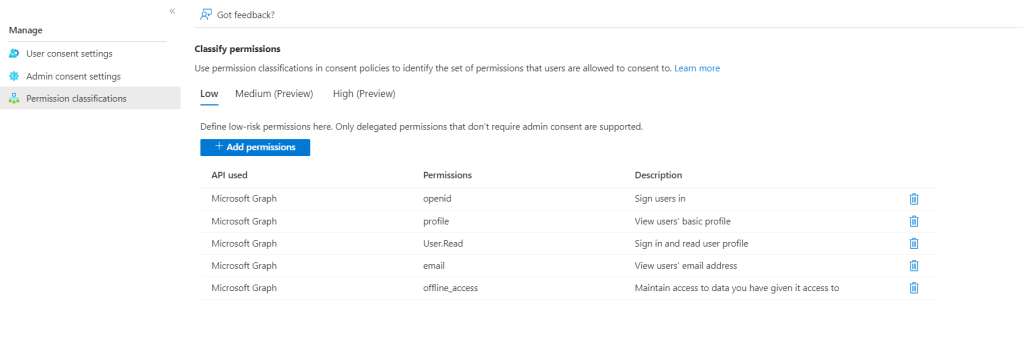
The second one, allowing user consent for apps from verified publishers for selected permissions, is viable, but the permissions classification is crucial. It determines which permissions are considered low impact and can be consented to by users. You should be very conservative about which permissions are granted freely. 

If users are blocked from approving apps, how will users request approval for such apps? Microsoft provides admin consent requests. It allows users to request approval for an application through a workflow rather than being blocked directly.

The choice between letting users approve verified apps and blocking user consent (but enabling consent workflows to preserve productivity) comes down to your organization’s size and security strategy. If in doubt, and if there isn’t any company strategy regarding this, I mostly suggest “Do not allow user consent”. This, combined with approval workflows, will add a bit of overhead, but it’s very manageable in most small to medium-sized tenants.

Remember, after you block (or only allow approved apps) consent, applications that were previously approved will still be allowed to access your org data. The next step is usually to conduct a rigorous analysis of formerly approved apps.

In Entra ID, administrators can also delegate app control to group owners for data related to their group, such as Teams content, allowing them to consent to applications for members of their group. Again, in this field, I’m mostly against allowing group owner consent if there isn’t a clear strategy for managing apps.

Steps

  • Head into Entra, then go to Enterprise ApplicationsConsent and permissions, or click on this link: https://portal.azure.com/#view/Microsoft_AAD_IAM/ConsentPoliciesMenuBlade/~/UserSettings
  • Under User consent for applications, depending on your organization, select either Do not allow user consent or Allow user consent for apps from verified publishers, for selected permissions. If in doubt, and if there isn’t any company strategy regarding this, I suggest “Do not allow user consent.
  • Under Group owner consent for apps accessing data, click Do not allow group owner consent
  • Now, head into Admin consent settings from the menu on the left. Here, we’ll enable users to request application approval and who can approve them.
  • Enable “Users can request admin consent to apps they are unable to consent to
  • I usually configure a limited number of admins, add them as members of a group, and add the group under the Groups tab. If you add a non-privileged user to this group, the user will get notifications for app approvals and will be able to deny the requests but not approve them, as this requires higher permissions.
  • Enable email notifications for requests and enable reminders.
  • Configure Consent requests as appropriate. In most cases, leaving 30 days is the optimal choice.
  • Save

If you have selected earlier Allow user consent for apps from verified publishers, for selected permissions, under “Permission classifications” on the left, you’ll be able to customize permissions that users can approve without admin requests.

Create an Entra ID role for LAPS password readers in Entra ID


General Introduction

Every device is born with a local administrator password. How we manage its lifecycle will change a lot in our environment.
Recently, Microsoft released support for LAPS integrated with Entra ID. While historically, we could use LAPS with AD, we now have the option to manage our local admin passwords directly in the cloud for hybrid and Entra ID joined devices.

To read the local administrator password, you must be granted the following action:

microsoft.directory/deviceLocalCredentials/password/read

By default, this action is assigned to:

  •  Global administrators
  •  Intune service administrators
  •  Cloud Device administrators

All other default roles are not eligible for reading LAPS passwords. So, we’re going to create a custom role to enable “lower privileged” admins to get them.


How to

  • Select a name. I’ve called it LAPS Password Reader. Fill the description with something like “Can read LAPS passwords”
  • Select microsoft.directory/deviceLocalCredentials/password/read
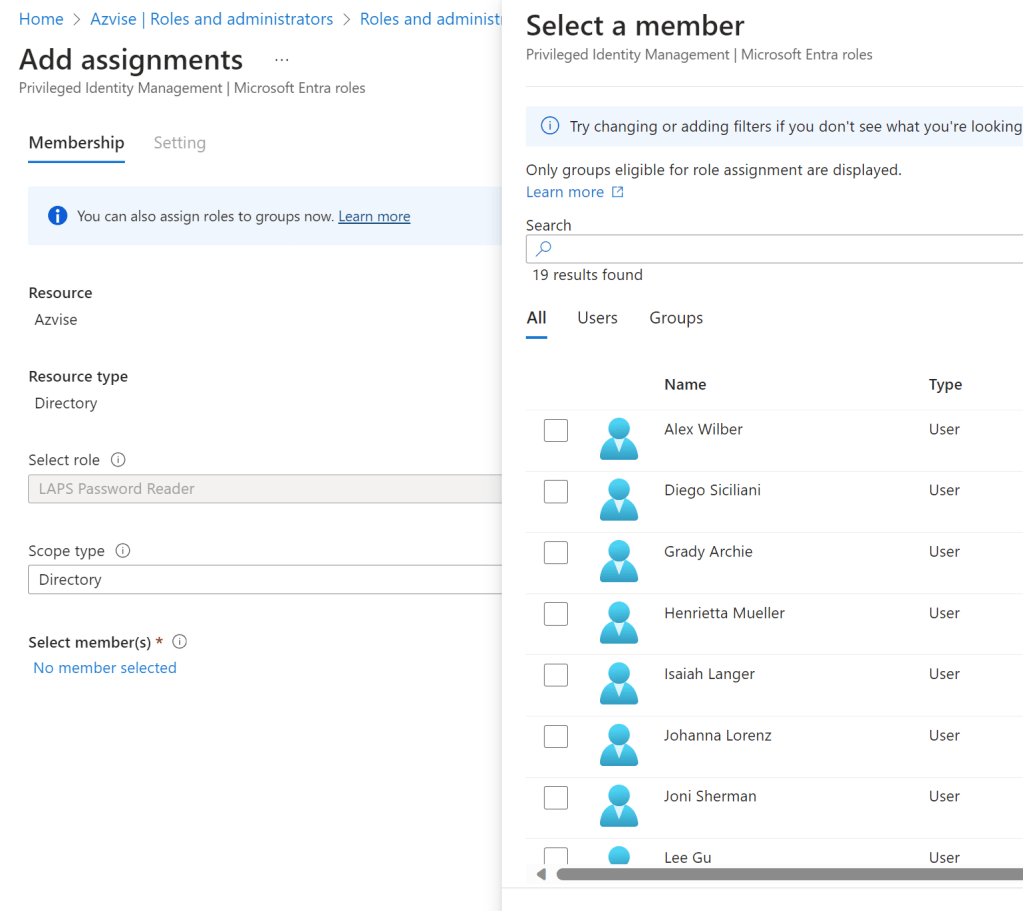
  • Click on Add Assignments, then on “No members selected”
  • Select the users or groups you wish to assign the role to, then click “Select” and “Next“.
  • Select if the role has to be permanent or eligible. It’s always preferable to have eligible roles instead of active roles. Eligible means the user has to activate the role via PIM (Privileged Identity Management) before being assigned to the role. Once activated, the role is going to be active for a set amount of time. Active means the user is always going to have the role active for their user account.
  • Click on “Assign”.
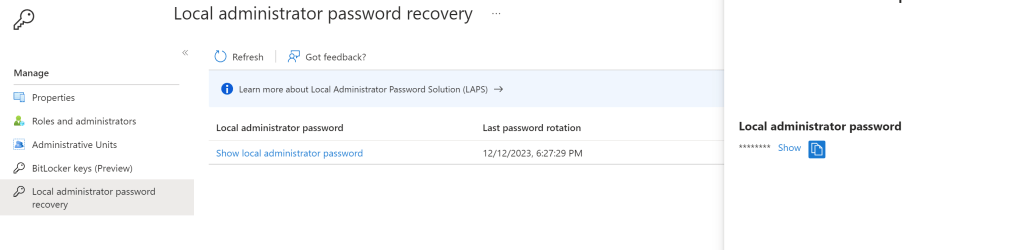
  • Now, test everything. You should be able to read the LAPS passwords.

Sources

https://learn.microsoft.com/en-us/mem/intune/protect/windows-laps-overview#role-based-access-controls-for-laps

Scale AKS HCI control plane and worker nodes


  1. Notes
  2. Scale the Control Plane
  3. Scale worker nodes

In Azure Kubernetes Service (AKS) on Azure Stack HCI, you can increase the resources available to your node pool by changing the size of virtual machines in a node pool or expanding the node count. The node count can also be increased with autoscaling methods.

The worker nodes can be scaled using the command Set-AksHciNodePool, while the Set-AksHciCluster scales the control plane.

I’ll be going over scaling both using PowerShell in the following guide. You’ll need to open a PowerShell session on one of the Azure Stack HCI nodes to follow along. Replace the parameter values as needed. 

Notes

  • As of January 2023, the scaling of the management cluster (the one created by AKS HCI automatically) is currently not supported.
  • At the time of writing, the “-vmsize” argument used with Set-AksHciNodePool is not documented in the command docs (Set-AksHciNodePool | Microsoft Docs) but is only referenced in this article: Scale up a worker node | AKS HCI Docs


Scale the Control Plane

Now we’ll scale up the current cluster. You’ll see the control plane VM size under ControlPlaneVmSize.

Get-AksHciCluster -name akshci01

Status                : {ProvisioningState, Details}
ProvisioningState     : Deployed
KubernetesVersion     : v1.23.8
PackageVersion        : v1.23.8
NodePools             : linuxnodepool
WindowsNodeCount      : 0
LinuxNodeCount        : 4
ControlPlaneNodeCount : 1
ControlPlaneVmSize    : Standard_D2s_v3
AutoScalerEnabled     : False
AutoScalerProfile     :
LoadBalancer          : {VMSize, Count, Sku}
Name                  : akshci01

You’ll only be allowed to scale up the control plane to the available VM sizes. To get which sizes are availabe, use Get-AksHciVmSize.

Get-AksHciVmSize

VmSize CPU MemoryGB
------ --- --------
Default 4 4
Standard_A2_v2 2 4
Standard_A4_v2 4 8
Standard_D2s_v3 2 8
Standard_D4s_v3 4 16
Standard_D8s_v3 8 32
Standard_D16s_v3 16 64
Standard_D32s_v3 32 128
Standard_DS2_v2 2 7
Standard_DS3_v2 2 14
Standard_DS4_v2 8 28
Standard_DS5_v2 16 56
Standard_DS13_v2 8 56
Standard_K8S_v1 4 2
Standard_K8S2_v1 2 2
Standard_K8S3_v1 4 6

In this example we’ll scale up to a D4s_v3.

Set-AksHciCluster -name akshci01 -controlPlaneVmSize Standard_D4s_v3

Status                : {ProvisioningState, Details}
ProvisioningState     : Deployed
KubernetesVersion     : v1.23.8
PackageVersion        : v1.23.8
NodePools             : linuxnodepool
WindowsNodeCount      : 0
LinuxNodeCount        : 4
ControlPlaneNodeCount : 1
ControlPlaneVmSize    : Standard_D4s_v3
AutoScalerEnabled     : False
AutoScalerProfile     :
LoadBalancer          : {VMSize, Count, Sku}
Name                  : akshci01

Now that we have scaled up the control plane, we can scale the control plane node count. The default is 1. If you scale up the control plane, it will become highly available and will not accept any scale down back to 1 node⚠️

Set-AksHciCluster -name akshci01 -controlPlaneNodeCount 3

Status                : {ProvisioningState, Details}
ProvisioningState     : Deployed
KubernetesVersion     : v1.23.8
PackageVersion        : v1.23.8
NodePools             : linuxnodepool
WindowsNodeCount      : 0
LinuxNodeCount        : 4
ControlPlaneNodeCount : 3
ControlPlaneVmSize    : Standard_D4s_v3
AutoScalerEnabled     : False
AutoScalerProfile     :
LoadBalancer          : {VMSize, Count, Sku}
Name                  : akshci01


Scale worker nodes

Now we’ll do the same thing we did for the control plane with the worker nodes. Here we’ll get the default VM size for the cluster.

Get-AksHciNodePool -clusterName $aksclustername

Status : {Phase, Details}
ClusterName : akshci01
NodePoolName : linuxnodepool
Version : v1.23.8
OsType : Linux
NodeCount : 2
VmSize : Standard_K8S3_v1
Phase : Deployed
AutoScalerEnabled : False

You’ll only be allowed to scale up the worker nodes to the available VM sizes. To get which sizes are availabe, use Get-AksHciVmSize.

Get-AksHciVmSize

VmSize CPU MemoryGB
------ --- --------
Default 4 4
Standard_A2_v2 2 4
Standard_A4_v2 4 8
Standard_D2s_v3 2 8
Standard_D4s_v3 4 16
Standard_D8s_v3 8 32
Standard_D16s_v3 16 64
Standard_D32s_v3 32 128
Standard_DS2_v2 2 7
Standard_DS3_v2 2 14
Standard_DS4_v2 8 28
Standard_DS5_v2 16 56
Standard_DS13_v2 8 56
Standard_K8S_v1 4 2
Standard_K8S2_v1 2 2
Standard_K8S3_v1 4 6

Now that we know which sizes are supported, we can scale up the cluster nodes. All preexistent nodes will be scaled up ⚠️

Set-AksHciNodePool -ClusterName "akshci01" -name "linuxnodepool" -vmsize "Standard_DS13_v2"

Status : {Phase, Details}
ClusterName : akshci01
NodePoolName : linuxnodepool
Version : v1.23.8
OsType : Linux
NodeCount : 2
VmSize : Standard_DS13_v2
Phase : Deployed
AutoScalerEnabled : False

Now that we have scaled up, we can scale the workload node count. The current node count depends on what you have set during setup.

Set-AksHciNodePool -clusterName "akshci01" -name linuxnodepool -count 4


Status            : {Phase, Details}
ClusterName       : akshci01
NodePoolName      : linuxnodepool
Version           : v1.23.8
OsType            : Linux
NodeCount         : 4
VmSize            : Standard_DS13_v2
Phase             : Deployed
AutoScalerEnabled : False