The following policies named “Standard Recommended Policy” or “Strict Recommended Policy” already exist


General Introduction

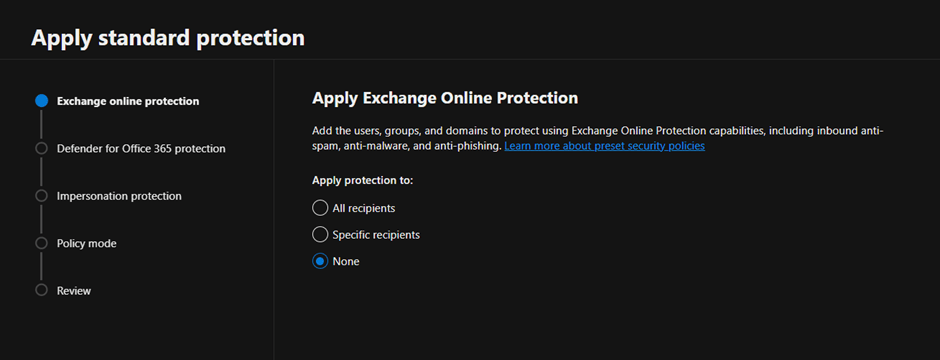
On a customer implementation I found the following error while trying to configure the Microsoft Baselines for Defender for Office 365:

The follow policies named “Standard Recommended Policy” or “Strict Recommended Policy” already exists. Please remove it first. HostedContentFilterPolicy


Guide

To fix the issue first open PowerShell and connect to Exchange Online. If you don’t have the module installed launch the following commands:

Set-ExecutionPolicy RemoteSigned
Install-Module PowershellGet
Install-Module -Name ExchangeOnlineManagement

Then connect to connect to Exchange Online with Powershell run the following command, modifying the username first:

Connect-ExchangeOnline -UserPrincipalName admin@azvise.com

Then run:

Get-HostedContentFilterPolicy

This will show the currently configured policies.

If you already have a Standard Preset Security Policy run the following to remove it:

Get-HostedContentFilterPolicy | Where Name -eq "Standard Preset Security Policy" | Remove-HostedContentFilterPolicy

If you already have a Strict Preset Security Policy run the following to remove it:

Get-HostedContentFilterPolicy | Where Name -eq "Strict Preset Security Policy" | Remove-HostedContentFilterPolicy

This should fix the issue. When you refresh your browser you should be able to configure the Preset Policies. Once completed, the new policies will show up.
How to enable and disable Security Defaults


General introduction

Security Defaults are one of the ways to establish a fundamental identity security baseline for your tenant. Security defaults are a set of security settings to help you protect your organization from the most common security threats. They can be enabled on a tenant with just one click. Well, two, if you count the save button. These settings are aimed at small and medium businesses that might not have an IT team with the knowledge or resources to manually set the standard for their environment. 

If you are currently using Conditional Access Policies, Security Defaults are probably not for you. In more complex environments, going the Conditional Access way can be trickier to manage but provide more benefits, such as the ability to require access from known and compliant devices. Also, Conditional Access Policies require Azure Active Directory Premium P1, and only some organizations are licensed for it.

If you wish to learn more about Conditional Access, I wrote a post about it:

Security Defaults are now activated by default in all the newly created tenants since October 2019, and Microsoft is rolling them out to existing tenants who don’t have Conditional Access Policies enabled.

What Security Defaults will do is:

  1. Requiring users to register for MFA using the Authenticator app. Users will have 14 days to comply before being required to do so.
  2.  Requesting MFA for both users and administrators, especially when a user accesses privileged portals.
  3.  Block legacy authentication protocols which can’t support MFA.


How to enable Security Defaults

  1. Access the Azure AD properties with an admin account by clicking on the following link, or navigating through the portal to Properties: Azure AD Properties | Azure Portal
  2. Click on Manage Security Defaults at the bottom of the page
  3. Set the Security Defaults to Enabled
  4. Save


How to disable Security Defaults

  1. Access the Azure AD properties with an admin account by clicking on the following link or navigating through the portal to PropertiesAzure AD Properties | Azure Portal
  2.  Click on Manage Security Defaults at the bottom of the page
  3.  Set the Security Defaults to Disabled
  4.  Provide a reason for disabling Security Defaults
  5.  Save

Notes

If you wish to learn more about Security Defaults, refer to the following documentation page:

Security Defaults | Microsoft Docs