
General Introduction
Exporting the logs from Azure AD is one of the crucial operations in setting up a tenant. In case something happens, along with the Unified Audit Logs (https://azvise.com/2021/10/26/office-365-enable-unified-audit-logs/), it gives you the possibility to go back in time, and better understand what’s going on. To export the Azure AD logs you’ll need an Azure AD Premium license and an Azure Subscription. You’ll also need to be a privileged admin (Global Admin or Security Administrator).
You’ll mostly want to export the logs to a Log Analytics Workspace, because it gives you the possibility to comfortably query the data via the Kusto Query Language (KQL). If you are not familiar with it, I’d suggest Must Learn KQL by Rod Trent: https://github.com/rod-trent/MustLearnKQL
How to
Here are the steps to export your logs:
- Open the Azure Portal.
- Open the Log Analytics page
- Click on “Create“.
- Select the subscription, resource group and choose a name and region for the LAW.
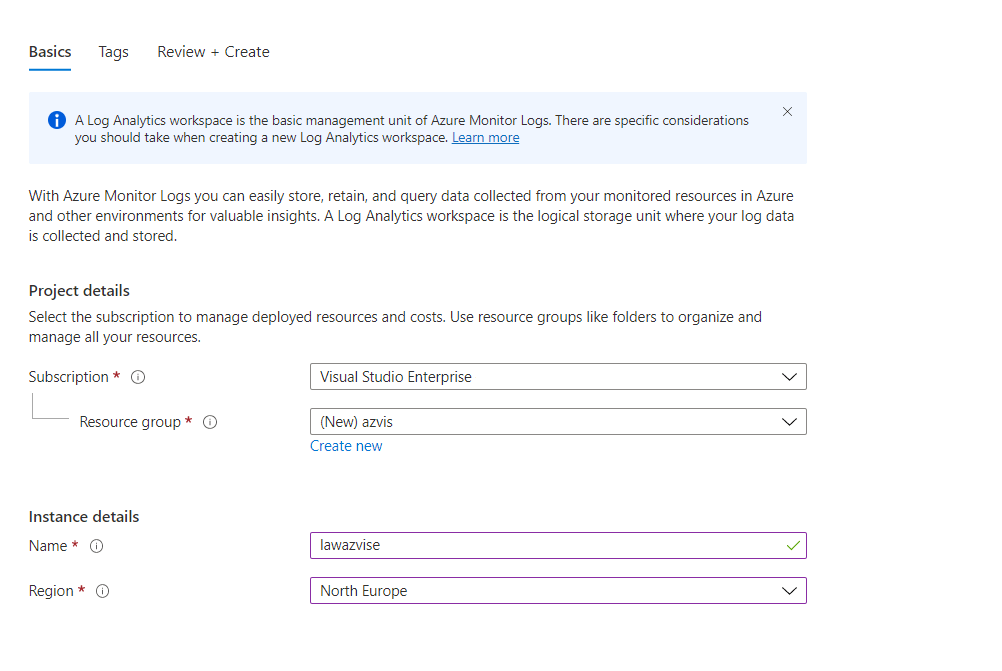
- Click on “Review + Create”, then on “Create”.
- Once the deployment has been completed, click on “Go to resource“.
- From “Usage and estimated costs” then “Data retention“, you’ll be able to configure for how longs the logs will be kept. The default is 31 days, but you can go as high as 730. Once you are done customizing it click on Ok.

- Go to Diagnostics Settings | Azure AD. If you prefer, head manually in the Entra portal, then in Monitoring & Health, then Diagnostic settings.

- Click on “Add diagnostic setting”.
- Select the types of logs to want to export. Ideally “SignInLogs” and “AuditLogs”
- Select “Send to Log Analytics workspace”.
- Select the Log Analytics Workspace you just created.
- Give the diagnostic setting a name.
- Click “Save”.
Notes
Here you can check out the official Microsoft documentation on the topic: https://learn.microsoft.com/en-us/azure/active-directory/reports-monitoring/howto-integrate-activity-logs-with-log-analytics
 Azvise
One thought on “Export Azure AD (Entra) logs”