
General Introduction
Every device is born with a local administrator password. How we manage its lifecycle will change a lot in our environment.
Recently, Microsoft released support for LAPS integrated with Entra ID. While historically, we could use LAPS with AD, we now have the option to manage our local admin passwords directly in the cloud for hybrid and Entra ID joined devices.
To read the local administrator password, you must be granted the following action:
microsoft.directory/deviceLocalCredentials/password/read
By default, this action is assigned to:
- Global administrators
- Intune service administrators
- Cloud Device administrators
All other default roles are not eligible for reading LAPS passwords. So, we’re going to create a custom role to enable “lower privileged” admins to get them.
How to
- Open Entra ID, then click on “Roles and administrators”, or navigate to the link below: https://portal.azure.com/#view/Microsoft_AAD_IAM/RolesManagementMenuBlade/~/AllRoles/adminUnitObjectId//resourceScope/%2F
- Click on “New Custom Role“

- Select a name. I’ve called it LAPS Password Reader. Fill the description with something like “Can read LAPS passwords”

- Select microsoft.directory/deviceLocalCredentials/password/read

- Click “Create”
- Open again “Roles and administrators”, or navigate to: https://entra.microsoft.com/#view/Microsoft_AAD_IAM/RolesManagementMenuBlade/~/AllRoles
- Search for your custom role and click on it
- Assign people to the role, preferably via eligible assignments.

- Click on Add Assignments, then on “No members selected”
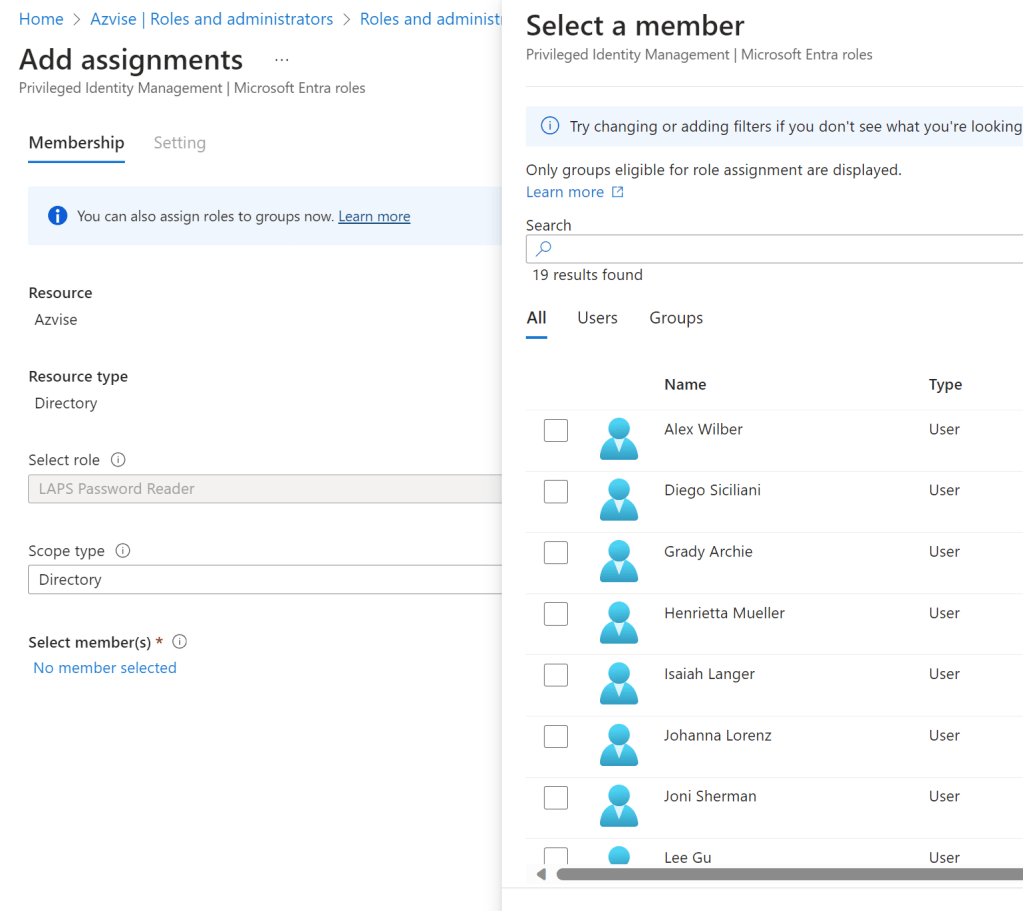
- Select the users or groups you wish to assign the role to, then click “Select” and “Next“.
- Select if the role has to be permanent or eligible. It’s always preferable to have eligible roles instead of active roles. Eligible means the user has to activate the role via PIM (Privileged Identity Management) before being assigned to the role. Once activated, the role is going to be active for a set amount of time. Active means the user is always going to have the role active for their user account.

- Click on “Assign”.
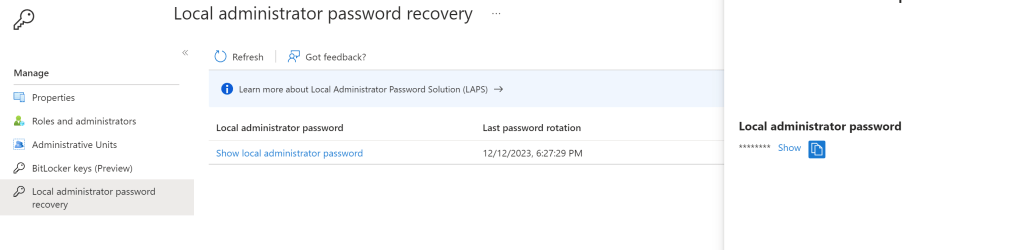
- Now, test everything. You should be able to read the LAPS passwords.
 Azvise