Since Microsoft will soon start to turn off Basic Authentication for Exchange Online, you’ll have to enable Modern Authentication client-side if you still have some machines running Outlook 2013 and want them to connect to Office 365. This is quickly done by adding some registry keys. Modern authentication is already enabled by default in Office 2016 and later versions.
This process will activate the Modern Authentication workflow for all the apps included in Office 2013 (Outlook 2013, Excel 2013, Word 2013, OneNote, etc.), not just Outlook.
While this procedure will allow you (for now) to connect to Office 365, it is critical to remember that connection to Office 365 and Exchange Online via Office 2013 is not supported anymore. You should update to a newer and supported version soon, as things might stop working without notice.
To enable the feature, either open an elevated CMD and paste these commands in or add the entries manually via Registry Editor.
If we want to restrict access to the Azuremanagement services for non-privileged users, we can now create a Conditional Access Policy that allows us to do so.
To create a Conditional Access Policy, we’ll need Azure Active Directory Plan 1 or higher, which is either bought standalone, or can be found most notably inside Microsoft 365 Business Premium, or the Microsoft 365 Enterprise plans (E3, E5)
On the other hand, if we just need to restrict access to Azure AD, we have the option to do so from the User Settings in the Azure AD portal:
Then, under “Users or workload identities“, select all users, and exclude the admin roles you currently use in your organization. You could also create a security group with all admin users as members and then exclude it from the policy.
Under “Cloud apps or actions”, click on “Selected apps”, then “Microsoft Azure Management“.
Finish up by selecting “Block access” under the Grant Access Controls.
From now on, all users except the admins will be blocked from accessing Azure management services.
In this article I want to illustrate how I would notify my users of the upcoming activation of Additional Context and Number Matching in their MFA requests.
If you are looking for a guide on how to enable Additional Context and Number Matching, follow the guide linked below.
From [replace with activation date] forward, you will be asked to enter additional details in your MFA (Multi-factor authentication) prompts.
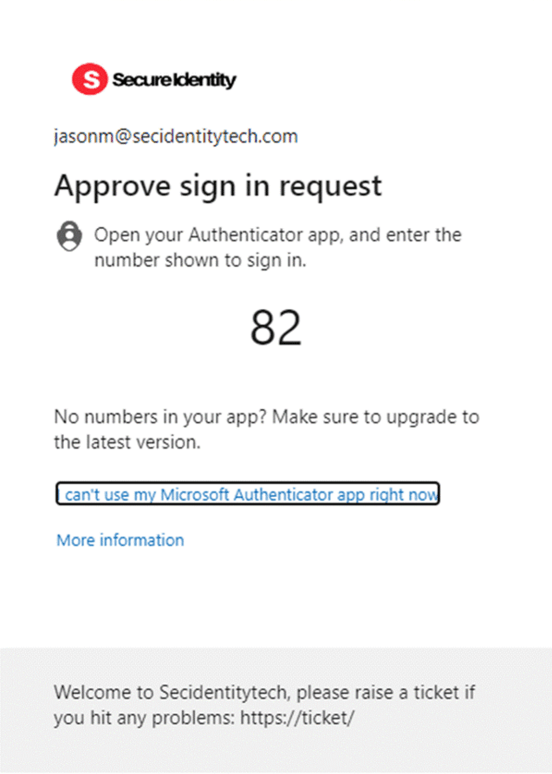
On your PC screen, you will be presented with a number, and you will be asked to enter this same number inside of your MFA request on your phone to complete the approval.
You will also get a map that will show the location where the request was made from. This must be taken as a general indication and it’s not always going to be your exact location, since Internet providers are not bound to route your connection from a point closest to you.
Please deny and report immediately to the IT department if you receive a request that was not done by you, or you do not recognize the location you are being shown.
If you’ve recently restricted user registration for applications or are analyzing your Enterprise applications, you might find a significant amount of work ahead. First, you may want to find if there are applications with no user assigned. Then you may wonder if there are applications without sign-ins in the last 30 days.
To ease your work, you may find it useful to query all applications for these fields and get the output in a CSV. This script is based on Ravenswood PoC code, with the intent of helping out and refining it a bit.
This is done via the portal and not via PowerShell for practicality. If you are not interested in reviewing Microsoft Applications, filter the csv file to just keep “Enterprise Application” under applicationType. This will greatly improve the processing time.
Then save the following script in the same directory where you downloaded the EnterpriseAppsList.csv. Name the script StaleApplicationAnalysis.ps1.
The script will require AzureADPreview. Update 2024: The script does not detect non-interactive sign-ins. To detect non-interactive sign-ins, Get-MgAuditLogSignIn should be used. I have not modified this script yet to use Graph.
# Connect to Azure AD
# Check if AzureAD module is installed
if (-not (Get-Module -Name AzureADPreview -ListAvailable)) {
    Write-Host "AzureADPreview module is not installed. Installing..."
    Install-Module -Name AzureADPreview -Force
}

# Import AzureAD module
try {
    Import-Module -Name AzureADPreview -ErrorAction Stop
    Write-Host "AzureADPreview module imported successfully."
} catch {
    Write-Host "Failed to import AzureADPreview module: $_" -ForegroundColor Red
}

Connect-AzureAD

$AllApplications = Import-Csv .\EnterpriseAppsList.csv
$Output = @() # Array to store output objects

foreach ($Application in $AllApplications) {
    # Retrieve the objectid and signin logs, format the user assigned to the app
    $app = Get-AzureADServicePrincipal -All $true | where { $_.objectid -eq $application.id }
    $Log = Get-AzureADAuditSignInLogs -All $true -Filter "appid eq '$($App.AppID)'"

    $userassigned = Get-AzureADServiceAppRoleAssignment -ObjectId $App.ObjectId | Select ResourceDisplayName, PrincipalDisplayName
    $userCount = 0
    if ($userassigned -ne $null) {
        $format = $userassigned.GetType()
        if ($format.basetype.name -eq "Object") {
            $userassigned = [string]$userassigned
        }
        $userCount = $userassigned.Count;
    }
    # Create a custom object for output
    $Table = [PSCustomObject]@{
        ApplicationName = $App.DisplayName
        ApplicationID = $App.AppID
        SignIns = $Log.Count
        Users =  $userCount
    }
    $Output += $Table
    $Table
    Start-Sleep 4 # The sleep is to avoid throttling
}

# Export the output to CSV
$Output | Export-Csv -Path .\StaleApplicationCleanup.csv -NoTypeInformation
And finally, run the script. This will take a bit of time since I had to implement a sleep timer to prevent throttling.
.\StaleApplicationAnalysis.ps1
The output will be along these lines, with an additional column for the App ID:
If you happen to find any optimization, feel free to let me know, and I’ll update the post.
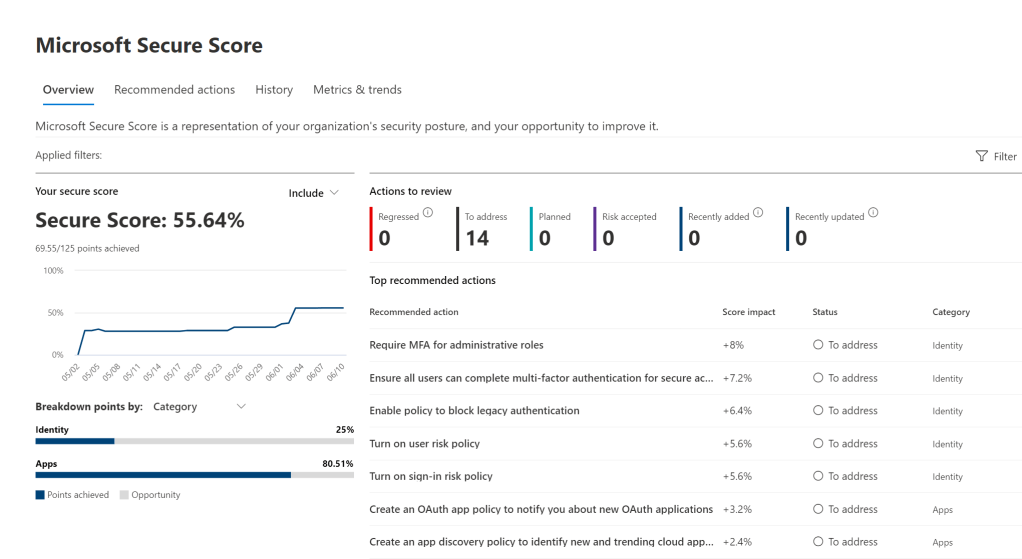
The Microsoft Secure score is a useful page to get an idea of the general improvement areas you should monitor and approach in your tenant.
When you make a change to reflect one of the improvement actions, you might have to wait up to 48 hours to get the points in the portal.
If you have waited the 48 hours (generally, it’s 24 hours, but the job might fail), check that the policies you created were configured as recommended in the “implementation” tab, then try the following.
First, check if there is some degradation with the service.
If there isn’t degradation, try changing the Conditional Access Policy (or the security policy you enabled) and see if the secure score catches up.
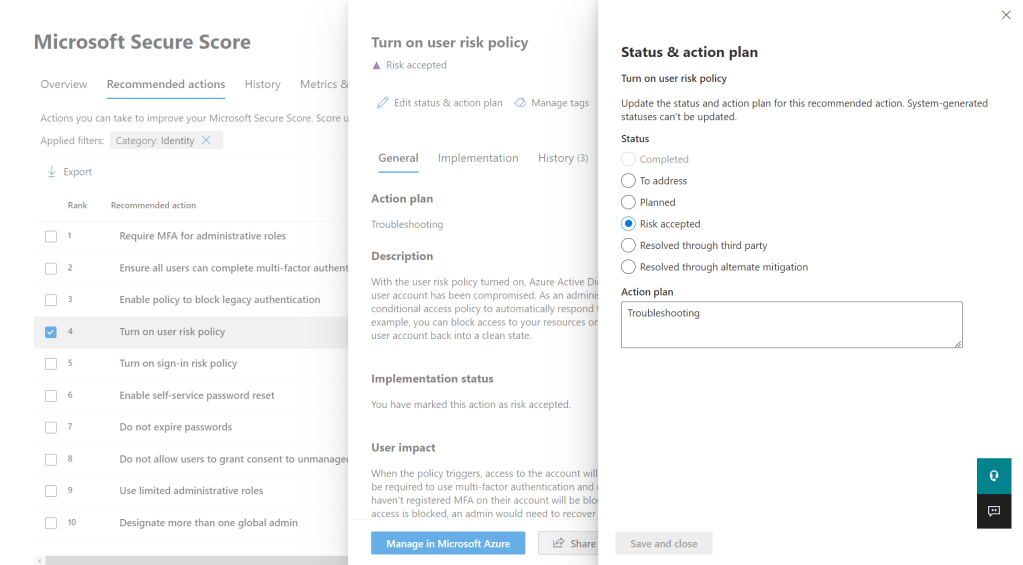
If it didn’t, or you are in a hurry, click on the recommended action, “Edit status & action plan”, and resolve the suggestion as risk accepted, then wait for the score to update. Once you see that the full points are awarded, revert the change. This procedure should “force” the sync to grant you full points, then change it with the actual value.
If the above failed, contact Microsoft Support and request a manual restart of the job.
Either that will solve it, or in some cases, just waiting a couple more days will fix it.
This is a brief and introductory guide on what you may want to configure and change in a basic hardened Teams environment. Please consider that these are just general recommendations, and what works for a company may not be the best for another one. This is especially true when it comes to setting up collaboration services. Keep in mind that your Teams security is only as good as your identity security.
It’s helpful to note that some companies require that users should not be able to create new teams, depending on your internal policies. This is done by limiting the creation of Microsoft 365 groups using the following setting: Groups – Microsoft Azure – Users can create Microsoft 365 groups in Azure portals, API or PowerShell. The same is also available via PowerShell in a more complete way.
Before diving into the settings, you may consider the following, that will not be discussed further, but are non the less important:
You should already have a basic hardened Azure AD environment (or AD + AAD if you are in an hybrid scenario). Your Teams security will be only as good as your identity security. For example, if you don’t have MFA set up yet or you are not blocking legacy authentication protocols, you might be better off starting from there.
You should consider setting up retention and expiration policies for Teams, especially if you will let users create teams freely.
DLP and sensitivity labels should be created and applied.
You should monitor user activity often via the Teams portal.
Enhanced encryption policies should be evaluated on a company by company basis since it disables recording and transcription.
You should start using and configuring Cloud App Security
Live event policies should be evaluated based on whether your company uses them.
Voice settings should be evaluated on a customer by customer basis, depending on what you have to implement and your general infrastructure.
Follow along by opening the Teams Admin center and evaluating these settings.
Teams -> Teams settings:
Turn OFF all external file sharing and cloud file storage options in the Files tab if they are not company approved.
“Users can send emails to a channel email address” should be set to OFF, or only specified domains should be allowed
“Scope directory search using an Exchange address book policy” controls how users find and communicate with other people in their organization. This may help users out, but it’s not a “must set”.
Teams -> Teams Policies:
Consider creating new policies for more granular management. The settings could be left all on if no specific stricter need arises.
Teams -> Teams Update policies:
You may want to consider setting “Show Office Preview” as not enabled. This is, however, not critical.
Teams -> Teams Upgrade settings:
Coexistence mode should be set to Teams Only if you are not using Skype for Business.
Users -> Guest access:
“Make private calls” should be set to OFF since there is mostly no need for a guest to make calls “using” your tenant.
“Meet Now” should be set to OFF.
“Edit sent messages” should be set to OFF.
“Delete sent messages” should be set to OFF.
“Delete chat” should be set to OFF.
Users -> External access:
Here, you can either allow all external domains, allow only specific domains or only block specific ones. This setting is very dependent on your organization and your risk acceptance level. Most SMBs are blocking specific domains.
Allow users in my organization to communicate with Skype users should mostly be set to OFF. The same goes for “People in my organization can communicate with Teams users whose accounts aren’t managed by an organization”.
Teams apps -> Permission policies:
You either go for a restrictive global policy or create tailored policies later. Whatever is best for your use case.
Third-party apps should be set to Block all apps if you are not using any.
Custom apps should be set to Block all apps if you are not using any.
Meetings -> Meeting policies:
You either go for a restrictive global policy or create tailored policies later. Whatever is best for your use case.
“Let anonymous people join a meeting” should be set to OFF.
“Let anonymous people start a meeting” might be set to OFF.
“Who can present in meetings” should be set to “Organizers, but users can override”.
“Automatically admit people” should be set to “Invited users only”.
“Dial-in users can bypass the lobby” should be set to OFF.
Meetings ->Meeting settings:
Anonymous people can join a meeting should be set to OFF
Anonymous users can interact with apps in meetings should be set to OFF
“Insert Quality of Service (QoS) markers for real-time media traffic” is usually set to ON. Not a deal-breaker, but it’s sometimes helpful to get insights.
Meetings -> Messaging policies
Owners can delete sent messages should be set to OFF if you don’t need moderation in Teams.
Delete sent messages may be set to OFF, if the need arises.
Delete chat should mostly be set to OFF.
Edit sent messages may be set to OFF, if the need arises.
Read may be set to “Turned on for everyone”, but it’s not a priority.
Giphy content rating should be set to “Moderate”.
You should set rules under “Notifications & alerts”, as they are more free insights that you get.
If you use Skype for Business, you may want to configure the policies found under Other settings -> Skype for Business.
If a user can’t access your tenant and forwards the following message to you, here are the steps on how you can solve it.
Your account is blocked
We’ve detected suspicious activity on your account.
Sorry, the organization you are trying to access restricts at-risk users. Please contact your admin.
The unblock is done by either resetting the user password or clearing the user risk once you have assessed that the risk is resolved.
If you have AAD Premium P2 (you can check it on the overview page of Azure AD), remediate the user risk by following this link Identity Protection | Risky users. A password reset is usually suggested and will also clear the user’s risk.
If you do not have AAD Premium P2, you can reset the user’s password or let them do it by themselves by using Self Service Password Reset (SSPR) if you have configured it. Alternatively, you can also go on this page, and ignore the user risk, once you have assessed that everything is resolved: AAD Risky Users. All these methods will clear the user risk.
Allow 10 – 15 minutes before the user can access again without getting the error reported above.
If you have Conditional Access Policies in place to block certain log-ins, you might get that a user will contact you because their sign-in request is being blocked. Probably both you and the user don’t know which policy is making the log-in fail, since it’s not specified in the error message.
The usual error message is something along the lines of: “Your sign-in was successful, but does not meet the criteria to access this resource. For example, you might be signing in from a browser, app or location that is restricted by your admin.” and the standard error code is “BlockedByConditionalAccess” error 53003
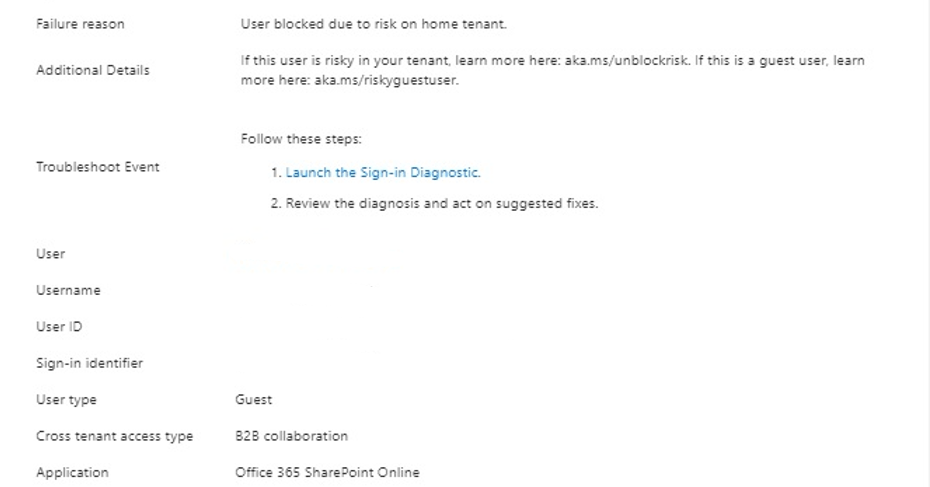
If you just enabled Azure AD Identity Protection for your entire tenant, you might get some complaints from guest users, saying that their sign-in was blocked.
If you got a similar issue, but the user is not a guest but a member of your organization, follow this guide:
You cannot remediate the user risk of a guest. If you try to look for a guest user in Identity Protection | Risky users, you won’t find any.
The user risk is calculated in the “home” tenant, where your user was created, not in the tenant you have guest access / are trying to access. This is also done so that the system may have more insights into user behaviour to calculate the risk.
How to resolve
Now going forward, there are two ways of solving this issue:
If the home tenant administrators have AAD Premium P2, they can remediate the user risk by following this link Identity Protection | Risky users. A password reset is usually suggested and will also clear the user’s risk.
If they do not have AAD Premium P2, they can reset the user’s password or let the user do it by themselves by using Self Service Password Reset (SSPR), if configured. Alternatively, they can also go on this page, and ignore the user risk, once you have assessed that everything is resolved: AAD Risky Users. All these methods will clear the user risk.
Of course, if you wish, you may disable the user risk policy for guests. This is done by creating a dynamic group in Azure AD containing all the guest (Dynamic security group with a dynamic query of usertype equals guest) and excluding it from the policy.
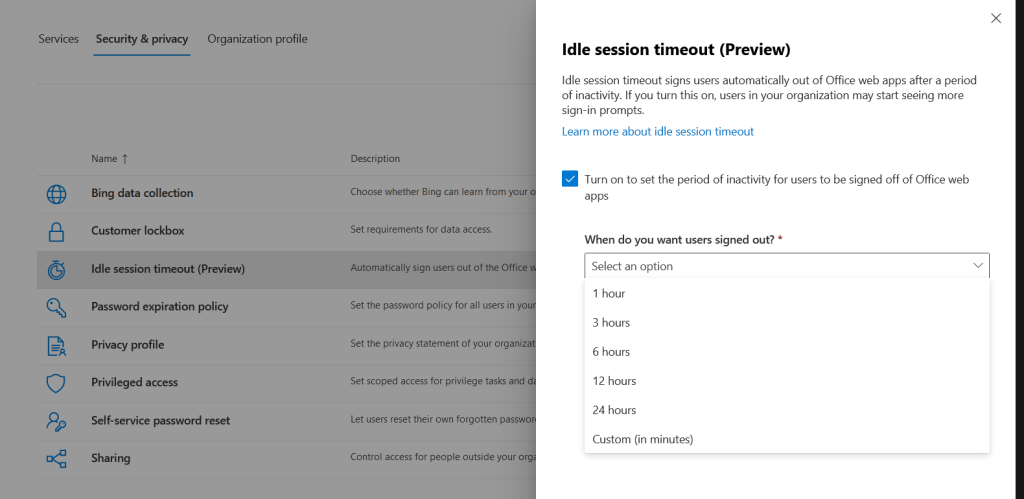
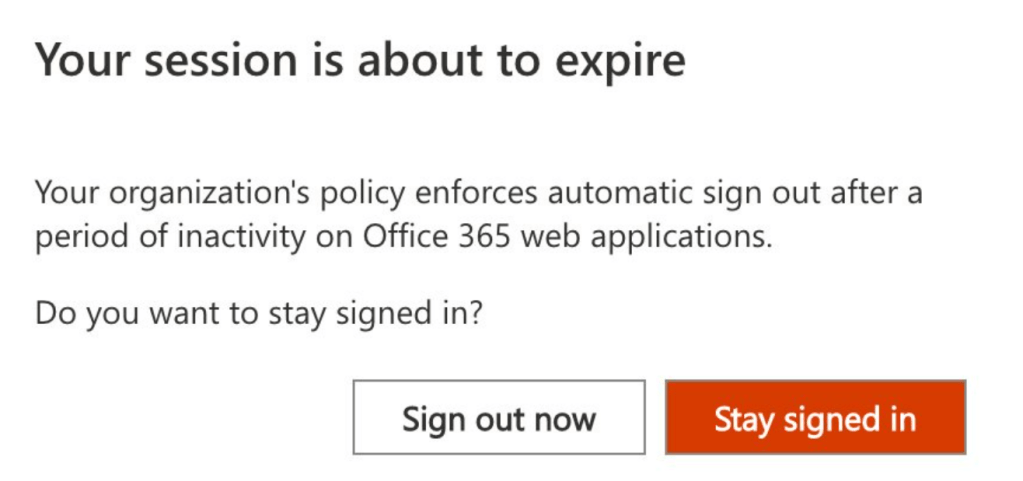
In the last few days, Microsoft implemented a timeout feature for the Microsoft 365 portal and the Office web apps. The aim is to disconnect a user if no activity is received. This will go on to become a global setting: “Idle session timeout for Microsoft 365 web apps will eventually replace current idle timeout settings in Outlook Web App (OWA) and SharePoint Online (SPO)”. This feature is not tab specific, so if you interact with Word (web app), you won’t be signed out from Outlook (web) that you have open in another tab.
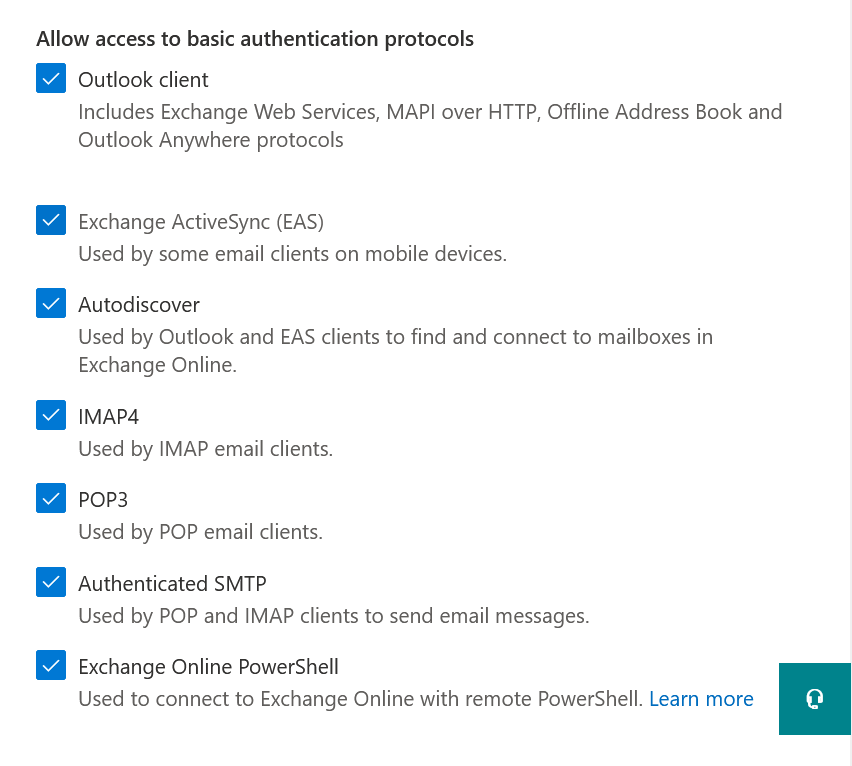
Even if most people use modern authentication for connecting with Exchange Online, some users still have to use app passwords to enable connections from Outlook.
For tenants created after August 2017, modern authentication is enabled by default, but some admins have it turned off.
To enable modern authentication for Exchange Online, follow these steps:
Since the best practice in Azure AD is to configure Break-glass administrators to be excluded from a lot of conditional access policies, you probably want to receive an alert if this user logs into the tenant. This admin should not be used for day to day operations, and the authentication methods should be really strong.
How to guide
For this procedure, you’ll need Azure AD Premium P1 or P2.
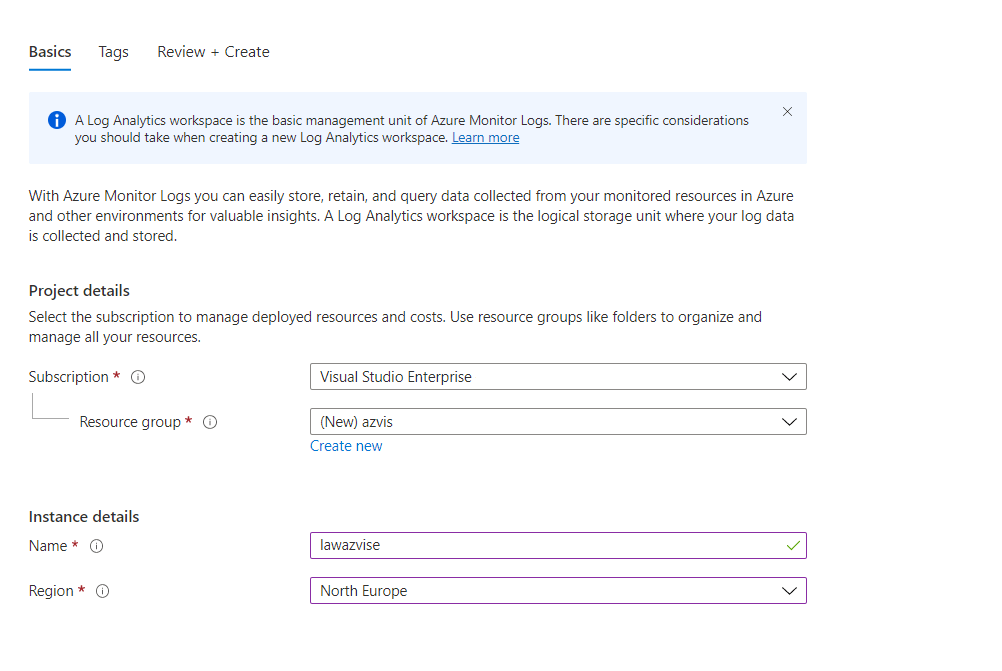
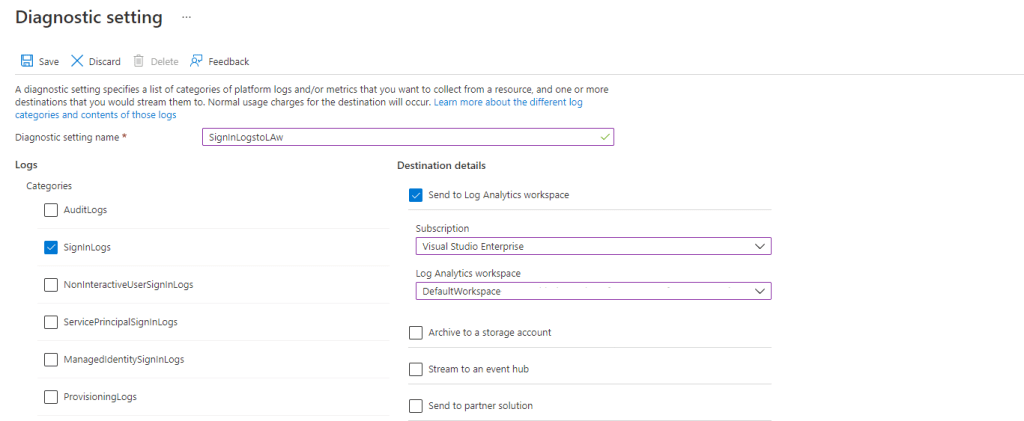
To receive an alert on a user login you’ll need to export sign-in logs to a Log Analytics workspace, then set up the triggers. We’ll go over the steps in this guide:
Click on the user you want to get alerts for, and copy the User Principal Name.
Open your Log Analytics workspace.
Go to “Alerts”, then “+ Create”, “Alert rule”.
Under “Condition“, select “Add”.
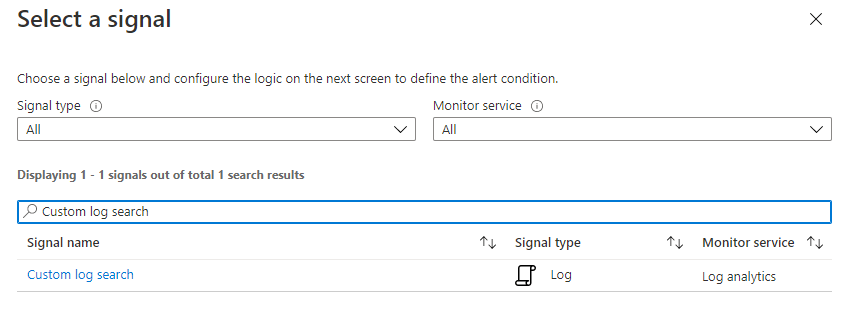
Select “Custom log search”.
In the text box, insert the following code, personalizing it for your UPN:
SigninLogs
| project UserPrincipalName
| where UserPrincipalName == "demo@azdemoenv.onmicrosoft.com"
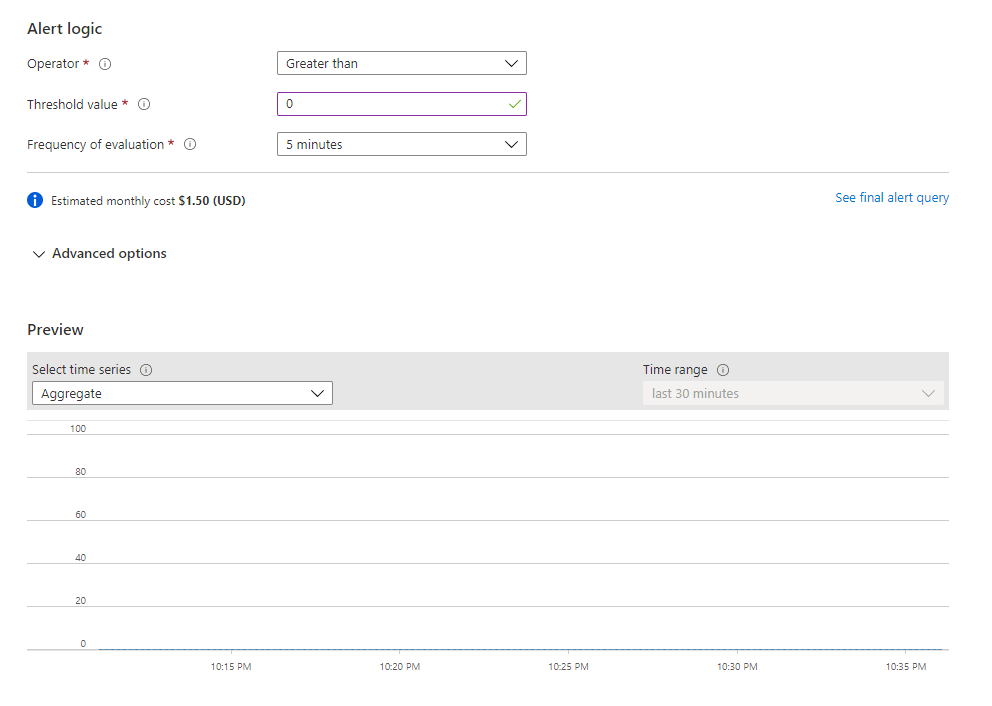
Under “Alert logic”, select “Operator” Greater than 0, with “Frequency of evaluation” 5 minutes.
If you want to get alerts as soon as possible, set the frequency of evaluation to 1 minute.
Click on “Next”.
Create an Action Group, or select your existing one.
To create one, click on “Add action groups”, select the subscription, resource group, and give the Action Group a name and display name.
Select the type of notification you want to get. In my example, I’ve selected an email and SMS.
Click “Ok”, and give the notification a name.
Click on “Review + create”, you will have the chance to test it out before pushing it in production.
Once you are happy with your rule, click “Create”.
If your tenant is not big, this alert will only cost a couple of bucks. However the bigger cost may come from storing all the sign-in logs. If the logs are under 5 GB, there will not be any charge, if it goes up from there you’ll have to pay for storage fees:
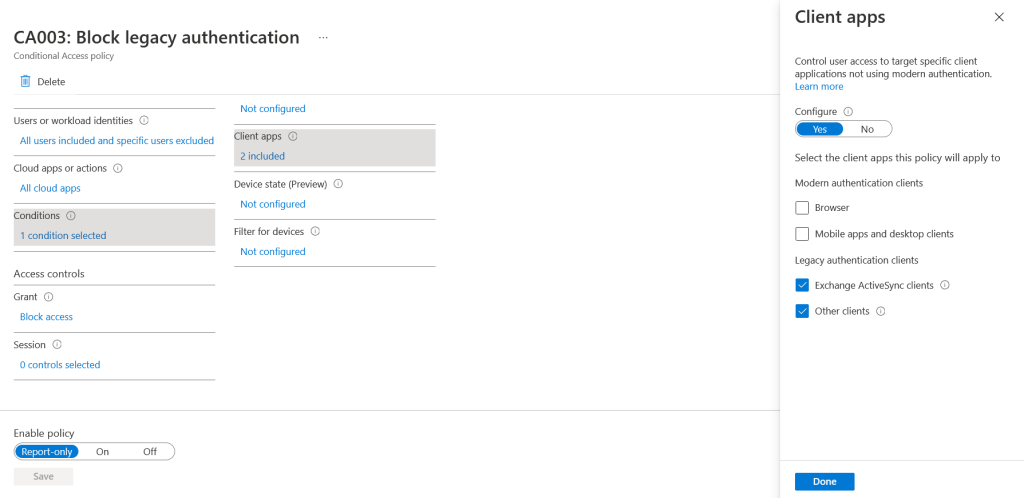
If just enabled a Conditional Access Policy blocking legacy authentication to Exchange Online, enabled Security Defaults, or Microsoft disabled it for your tenant, you might see some Apple Mail clients not connecting anymore.
This issue is happening because the profile might be still configured to use Exchange ActiveSync to connect to Exchange Online, and EAS (along with other legacy protocols) will be retired in October 2022.
Apple supports an automatic switch to modern authentication for its profiles, but only if it was freshly configured after iOS 12.
Unfortunately, it seems that backing up and restoring profiles does not trigger the switch to modern auth, so if you moved to a new iPhone and didn’t reconfigure the profile manually, you’ll need to remove and recreate it.
UPDATE 16.06.2022:
Apple will add support for the automatic migration to modern auth in iOS 15.6. Once you update your Apple device, the Mail app will use the saved credentials to establish a new authentication flow. From that moment onward, you’ll authenticate to Azure AD (Microsoft online Identity Provider) and get a new OAuth access token. The “old” stored credentials will then be removed. The process is fully transparent to users.
If you just installed the Azure Information Protection on-premises scanner and you are trying to start your first Content Scan Job, you might get that the button “Scan now” is greyed out.
Before attempting to troubleshoot, check that you selected the job below. If you did, try restarting the service “Azure Information Protection Scanner” on the SQL server and refreshing the Azure Content scan job page.
If you still cannot start the scan, try executing the following command on the SQL server, and insert the credentials of the service account:
It’s been a long time since Microsoft released number matching and additional context for the Microsoft Authenticator. These features allow you to quickly improve your MFA posture, adding a new layer of security and preventing accidental approvals. This is also useful to lower the chances of being compromised by MFA fatigue attacks. The feature consists in a map shown on your MFA prompt on your phone that indicates where the MFA request is coming from, the name of the application requesting the MFA challenge, and a box to insert the number that will be shown on screen.
Image taken from the Microsoft Docs. Link in the notes
How to enable it
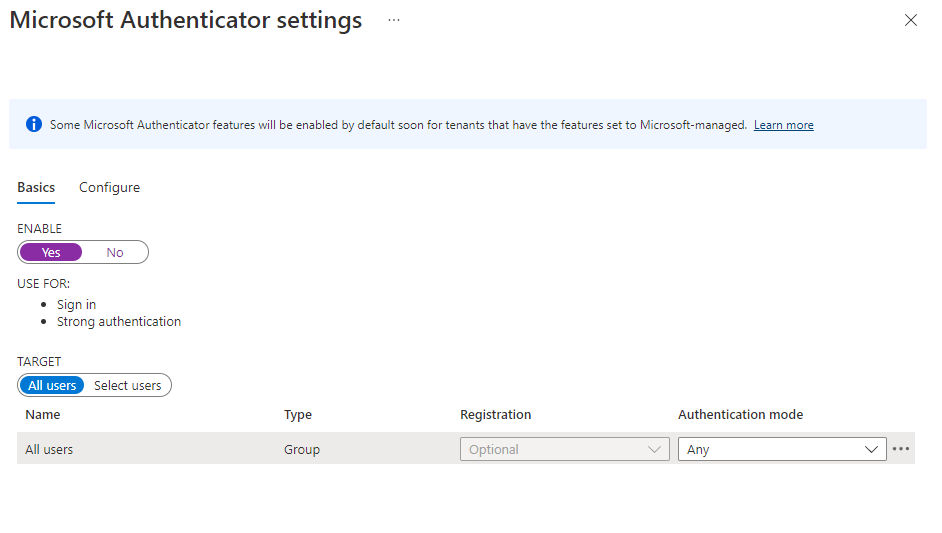
To enable these features follow this link, which will guide you into Azure AD > Security > Authentication methods:
Be sure to activate “Require number matching for push notifications“, “Show application name in push and passwordless notifications” and “Show geographic location in push and passwordless notifications“, then save.
You can scope the features to a selected group of users if you want to test them out and go for a gradual rollout. This is done by selecting “Select group” and adding the group for which you want to enable the feature.
Additional notes
Check out this article if you are looking for a communication to send out to users before rolling out the features:
There are a couple of ways to enable an automatic classification of files in SharePoint. The first one, more complete from a customization point of view, is to use a File Policy in Defender for Cloud Apps. The second one (the newer and less recommended one, to be fully released Q3/Q4 2022) is to use a Default Sensitivity Label in SharePoint Online.
If you are looking at how to enable file monitoring and file policies, follow this guide:
Create a broad filter. I’ve set it as “App equals SharePoint Online” for this example.
Under “Apply to”, specify the root folder where the policy should start to apply.
Apply the governance action “Apply sensitivity label”, and select your label. Check the box below if you wish MDCA to override all user-defined labels. This will override older labels set on docs in the site and new ones defined at document creation.
Save the policy
Suppose you would like a policy to automatically apply labels to all the files and subfolders recursively from a root folder onward in SharePoint or OneDrive. In that case, you might think you can use the “Files matching all of the following” filter. Unfortunately, this won’t work, as it will not match recursively on the files contained in the subfolders.
Default Sensitivity labels in Sharepoint Online
Once you enable SharePoint to process labels, you can configure a default label for document libraries. This will ensure that any new or newly modified files get the specified label.
The feature will not apply to documents not opened since setting the default label or if the file has a higher priority label applied. Therefore, I would recommend, for the moment, using PowerShell or MDCA (as shown above) before setting the default label.
The feature will also not work if you have “User access to content expires” set anything other than Never or if you use Double Key Encryption.
I’ve recently created a quick script to enable this feature. Check it out here:
Since Azure introduced the option to download the OS disk of a VM directly, you don’t need anymore to traffic around to download the unmanaged disk (or go with the snapshot route). Here are some easy steps to directly download the disk of your Windows / Linux VM. Please note that a Sysprep is advised if you need to use the disk as a template to create new VMs.
Go to the VM, and stop it.
Click on “Disks” then on he OS Disk.
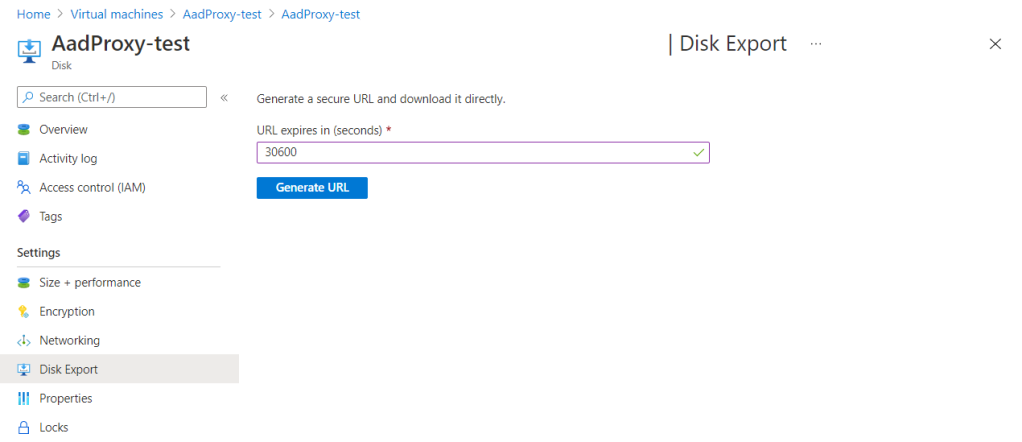
Click on “Disk Export“, then in the field, enter a higher number (es. 30600) so that you have plenty of time to download the disk. Once done, click “Generate URL“.
When you transfer Azure resources between subscriptions, you might get the following error: “ResourceNotTopLevel“.
This is caused by the fact that you only have to select top-level resources for the move, and the dependencies will be moved automatically.
For example, say you selected both a Network Watcher Extension and the relative VM you want to move. You will just need to move the VM object, and the extension will come with the server.
Example of an error code:
{
                "code": "ResourceNotTopLevel",
                "message": "Identifier '/subscriptions/0000000000000000000/resourceGroups/MoveResource/providers/Microsoft.Compute/virtualMachines/VMtobeMoved/extensions/AzureNetworkWatcherExtension' is not a top level resource. Please include only the top-level resource for this child resource in the move request. A child resource would be moved along with its associated top-level resource.\""
            }
From the error code, you’ll get that you just have to move the following resource, being the top-level one:
It’s good to remember that if dependent resources are distributed across different resource groups, you’ll first have to move them into one resource group and then attempt the migration.
Using Azure AD Access Reviews (available with Azure AD Premium P2), you can automatically remove guest users from your tenant who haven’t had access in a specified number of days. In this guide, we will implement the access review step by step.
This is a great way to clean up your tenant automatically and can be scheduled.
NOTE: The procedure used to clean up only users who didn’t have access in the last 30 days. This has now been expanded to support a variable number of days (ex. 60, 90, etc).
Step by step guide
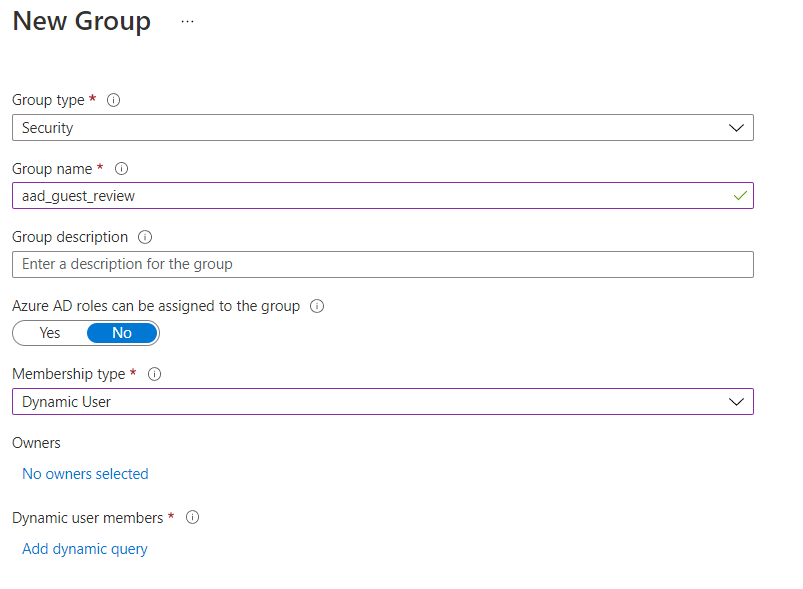
As a prerequisite, you’ll need to create a dynamic group in AAD, which will contain all guest users who can log in to the tenant:
To create the group, go to AAD Groups, then click on “New Group”.
Select Group Type as “Security“, give the group a name, and select “Membership type” as “Dynamic User“.
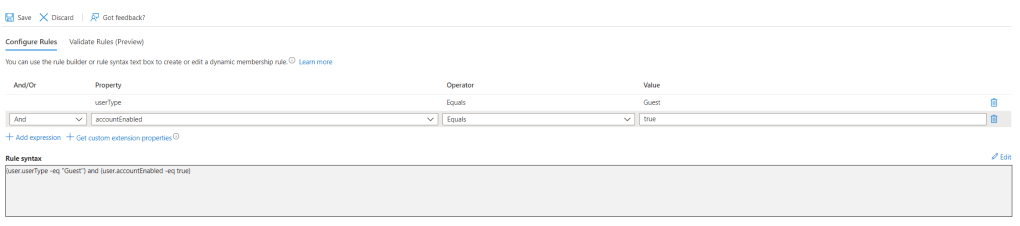
Under “Dynamic user members”, click on “Add dynamic query“.
The query you will want to create is:
(user.userType -eq "Guest") and (user.accountEnabled -eq true)
You can create this group also using Powershell, and pasting this command after installing the Graph module.
The accountEnabled attribute lets you filter for users who can log in. Since the access review will deactivate the account for 30 days before deleting it permanently, this way we’ll filter only for the guest users active in the tenant and not the ones ready to be automatically deleted.
Once done, click on “Create”.
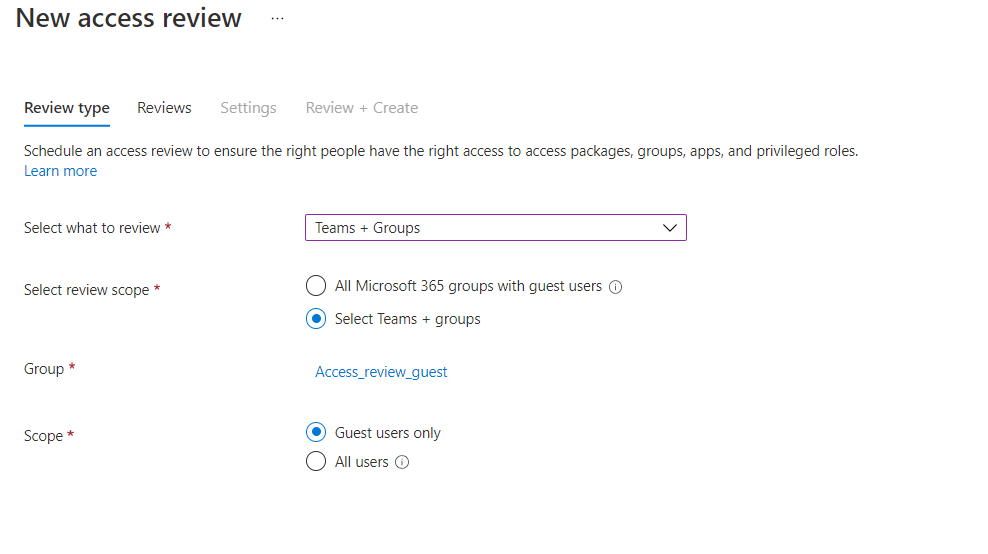
To create the access review, open this link, then follow the steps listed below:
Select “Teams + Groups” under “Select what to review”, “Select Teams + groups” under “Select review scope”, under “Group” enter your group, then click on “Guest users only” under “Scope”.
You can then filter only for the guest that did not had access in a specified number of days. This is accomplished using this part of the wizard:
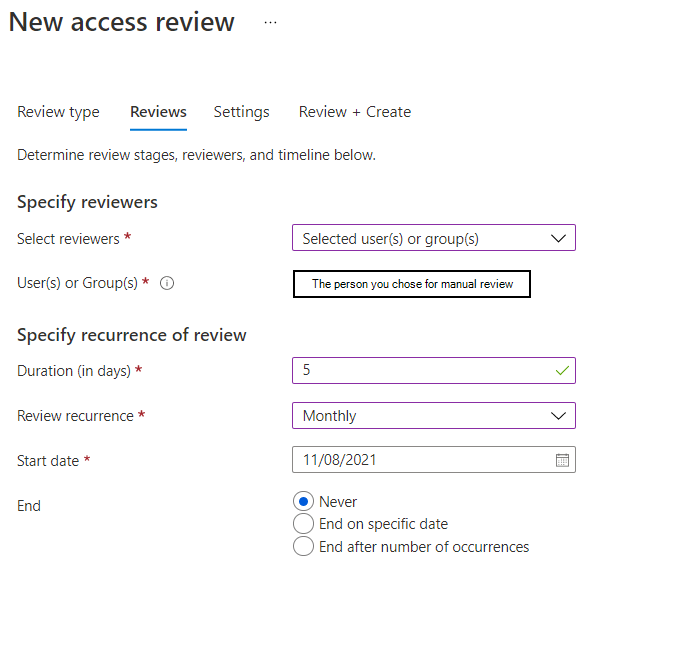
Click on Next, and under “Select reviewers”, click on “Selected user(s) or group(s)“. The person or people that will manually review the users to delete should be selected just below. If not needed, insert an admin and go ahead. I always give at least 3 to 5 days for the reviewers to check if somebody should not be blocked or deleted. If some guest user should always be excluded from the review, you can add an exclusion in the AAD Group membership rules.
In the last paragraph, you’ll want to select auto-apply results to make the automation work. Under “If reviewers don’t respond”, choose “Take recommendations“. The recommendations will be based on whether the user has logged in recently or not. There are no other recommendations that I am aware of at this moment. Under “Action to apply on denied guest users”, select “Block user from signing-in for 30 days, then remove user from the tenant“. Be sure that “No sign-in within 30 days” is selected as reviewer decision helper, as per the image below.
If you want this to be fully automated, deselect “Justification required”.
Once done, click on “Review + create”, give the review a name and click on “Create”.
Now you will automatically have the guest users who haven’t logged in in the specified number of days blocked. After 30 days, the blocked user will be removed from the tenant.
Additional resources
Jef Kazimer wrote a really cool guide on how to remove unredeemed B2B guest from your Azure Active Directory:
Unified Audit Log is one of the essential features for tracking down every action done across the tenant.
The logs are kept for 90 days by default, but you can extend them using special addons.
If you want to check whether the logging is enabled on your tenant, connect to Exchange Online with PowerShell. Once connected, you can check the status.
You might be asked to run “Enable-OrganizationCustomization” before relaunching the command. You must wait 30 to 60 minutes after sending “Set-AdminAuditLogConfig -UnifiedAuditLogIngestionEnabled $true” to see it enabled in the portal.
Portal way:
Go to https://compliance.microsoft.com/, then click on “Audit” on the left pane. When you get to the page, click on “Start recording user and admin activity“, then check the status after 30-60 minutes. If it fails, try with PowerShell.
If the server has downloaded automatically an update (such as the SharePoint ones), which you don’t want to install, try following these steps to delete the queue:
Open an elevated PowerShell, then run the following command
Stop-Service -Name "wuauserv"
Open an elevated PowerShell, then run the following commands to make a backup of the folders we’re going to delete.
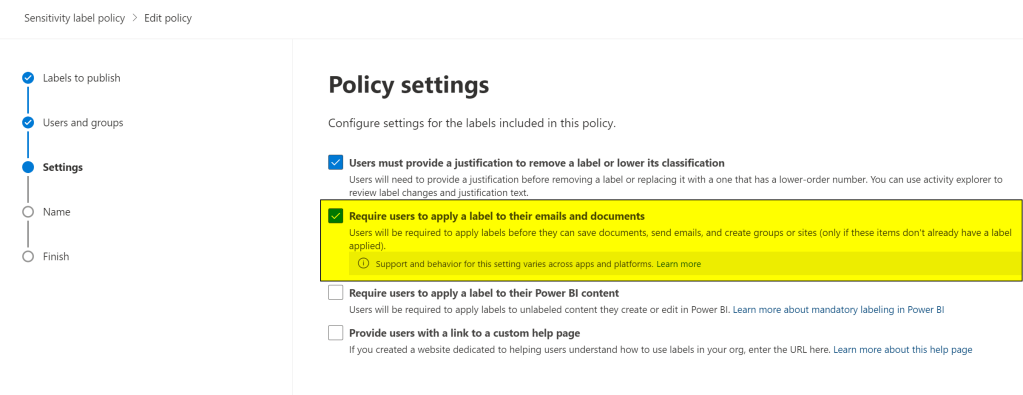
When you select “Require users to apply a label to their email and documents” inside a label policy in Microsoft Information Protection, users will be required to classify the documents they create/modify.
To add this requirement, access the compliance portal and select a label policy you created.
Then click “Edit policy” and go straight into “Settings”. Select “Require users to apply a label to their emails and documents”, then save the label policy.
Just follow the steps listed before and unselect “Require users to apply a label to their emails and documents” from all the label policies to remove the requirement.
Be aware that the policy may take a while to replicate.
If you are encountering issues with Azure File Sync, or you just want to force the process so that you can free some space now, follow the commands shown below:
#Import the commands
Import-Module "C:\Program Files\Azure\StorageSyncAgent\StorageSync.Management.ServerCmdlets.dll"

#Force the synchronization of the folder you have specified in the sync group
Invoke-StorageSyncCloudTiering -Path <sync_group_path>
If you want to get some logs out of the operation for troubleshooting, send these commands in a separate PowerShell window before launching the script above:
cd C:\
New-Item -ItemType directory -Path C:\AZfslogs
cd "C:\Program Files\Azure\StorageSyncAgent"
Import-Module .\AFSDiag.ps1
Debug-AFS -OutputDirectory C:\AZfslogs -KernelModeTraceLevel verbose -UserModeTraceLevel verbose
You can terminate the command once the sync is concluded and get the logs in the C:\AZfslogs folder.
This way, the domain-joined clients will not be able to ask Active Directory an SCP entry and directly query the AutoDiscover (which should be fine, if you migrated to Office 365, as it’s one of the requirements).
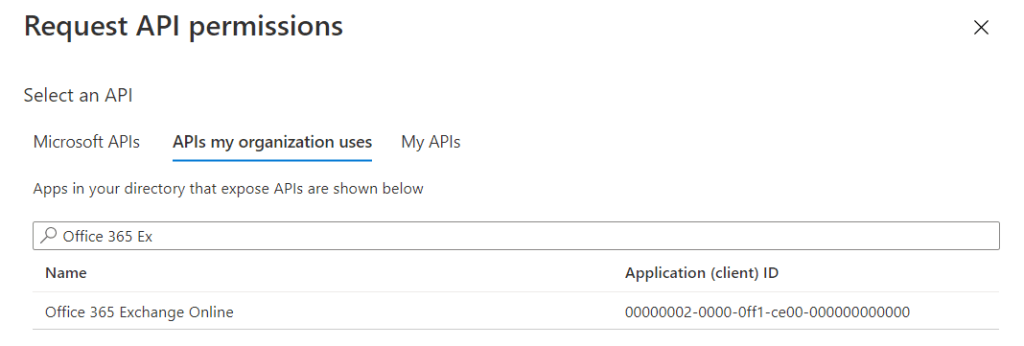
If you are looking for the Exchange API to configure modern authentication for Veeam, you’ll find that it is no longer present under “Request API Permissions” -> “Microsoft API”.
Instead, what you want to do is go into “APIs my organization uses” under the “Request API Permissions”, then search for “Office 365 Exchange Online“.
It’s basically the same thing, only a bit harder to find, as the search doesn’t show up results if you look for “Exchange”.
To configure a VM for Azure Site Recovery we’ll need to configure the Microsoft Azure Linux Agent and enable the console. The VM will automatically get the DHCP network settings that it will need to get an IP from Azure.
If you get this error there is probably something wrong with the user profile. It’s usually either that the VHD / VHDx is locked, or the cached profile is broken.
In the first case sometimes the Windows Session closes down and doesn’t alert FSLogix to unlock the disk. Before you reboot the VM, consider adding the following registry entry:
At times a Windows Session may suffer an inelegant termination, in these cases FSLogix is not provided an appropriate event to trigger the dismount of the VHD(x) file for Profile Container and Office Container. By setting CleanupInvalidSessions to 1, additional FSLogix logic is triggered to make this scenario less likely. Setting CleanupInvalidSessions will cause the functionality to be utilized for both Profile Container and Office Container. KNOWN ISSUE: at this time CleanupInvalidSessions should not be used in conjunction with Cloud Cache when concurrent sessions (e.g utilizing ProfileType/VHDAccessMode) are in use.

























 Azvise