Force Azure File Sync tiering

If you are encountering issues with Azure File Sync, or you just want to force the process so that you can free some space now, follow the commands shown below:

#Import the commands
Import-Module "C:\Program Files\Azure\StorageSyncAgent\StorageSync.Management.ServerCmdlets.dll"

#Force the synchronization of the folder you have specified in the sync group
Invoke-StorageSyncCloudTiering -Path <sync_group_path>

If you want to get some logs out of the operation for troubleshooting, send these commands in a separate PowerShell window before launching the script above:

cd C:\
New-Item -ItemType directory -Path C:\AZfslogs
cd "C:\Program Files\Azure\StorageSyncAgent"
Import-Module .\AFSDiag.ps1
Debug-AFS -OutputDirectory C:\AZfslogs -KernelModeTraceLevel verbose -UserModeTraceLevel verbose

You can terminate the command once the sync is concluded and get the logs in the C:\AZfslogs folder.

Disconnect a user session in Azure Virtual Desktop (AVD) – PowerShell

Prerequisites: The Microsoft.RDInfra.RDPowerShell module, the Az PS module

First, install the RDInfra module:

Install-Module -Name Microsoft.RDInfra.RDPowerShell; Import-Module -Name Microsoft.RDInfra.RDPowerShell

Then proceed by installing the Az module and logging in:

Connect-AzAccount

Once you are logged in you can run the following script to disconnect a specific user session:

Get-RdsUserSession -TenantName "tenantname.onmicrosoft.com" -HostPoolName "HostPoolName" | where { $_.UserPrincipalName -eq "azvise\demouser" } | Invoke-RdsUserSessionLogoff -NoUserPrompt

Repair / troubleshoot a Linux VM – Azure

If you encounter a boot or disk error with a VM, you need to get the OS disk into another VM to troubleshoot the issue.

The command we will run into Azure Cloud Shell is az vm repair create. To create a troubleshooting VM, follow these steps:

  • Open Azure Cloud Shell in bash or install Azure CLI in your bash environment.
  • Run the following command: az vm repair create -g “resourcegroupname” -n “VMname” –verbose
  • Insert admin credentials for the newly created VM into the bash shell
  • Connect to the newly created server and start analyzing the problem

ASR Kernel modules fail to load while installing the Mobility Service (VMware) – Azure

If some kernel modules fail to load (such as in the example below) while installing the Mobility Service agent, please check:

  • If the kernel is supported in your Configuration Server version
  • If secure boot is enabled
#EXAMPLE using SUSE 15 SP2
exampleserver0:/tmp/ASR # sudo ./install -d /usr/local/ASR/ -r MS -v VmWare -q
All product pre-requisties are met.
Generating the certificate.
[...]

Filter driver kernel module is not loaded. Attempting to load it, please wait...
insmod /lib/modules/[kernelversion]-default/kernel/drivers/char/involflt.ko 
Filter driver could not be loaded successfully.
Check the log file /var/log/ua_install.log for detailed diagnostic messages or installation success/failures...
Vx agent installation exit code : 208.
Check the log file /var/log/ua_install.log for detailed diagnostic messages or installation success/failures...
Installer exiting with code: 208

Check the following page to see if the kernel version is supported:

https://docs.microsoft.com/en-us/azure/site-recovery/vmware-physical-azure-support-matrix#ubuntu-kernel-versions

If it’s supported try launching the following command:

mokutil --sb-state

If it’s enabled you should get something along the lines of:

SecureBoot enabled

Please note that SecureBoot is not supported at the moment with VMware DR in ASR:

https://docs.microsoft.com/en-us/azure/site-recovery/vmware-physical-azure-support-matrix#storage

To disable SecureBoot proceed as following:

  • Click on the virtual machine in vSphere (or vCenter)
  • Shut down the VM
  • Click on Edit Settings
  • Go in VM Options, then Boot Options
  • Deselect the Secure Boot check box
  • Click on OK
  • Start the VM


Cannot enable protection for a VM in ASR “This operating system isn’t supported in Azure”

If you get the following error, please check if the OS and kernel versions are supported:

https://docs.microsoft.com/en-us/azure/site-recovery/vmware-physical-azure-support-matrix

If they are supported, you can install manually the agent on the VM. If it doesn’t work, try checking if the VM in VMware is configured as “Other (64-bit)” in the guest OS version. If it is, you should change the version to the specific Linux distribution you got installed. Mind that the VM must be shut off to change the Guest OS version.

To install manually the agent follow these steps:

  • Go under %ProgramData%\ASR\home\svsystems\pushinstallsvc\repository in your ASR server and copy the “Microsoft-ASR_UA*_GA*.tar.gz” file specific to your distribution.
  • Copy the file to the VM. I would recommend creating a specific folder for the file under /tmp
  • Copy the Conf server passphrase to the server
  • Unpack the file: tar -xvf Micorosft-ASR_UA_yourfile.tar.gz
  • Run the following command as root: ./install -d /usr/local/ASR -r MS -v VmWare -q
  • Register the mobility service to the Conf server: /usr/local/ASR/Vx/bin/UnifiedAgentConfigurator.sh -i ConfserverIP -P /var/passphrase.txt

Remove UDR from a subnet with a private endpoint associated – Azure

If you try to remove a UDR from a subnet that contains private endpoints, you may get the following error:

Failed to dissociate subnet 'SubnetName'. Error: Private endpoint network policies cannot be enabled on private endpoint subnet 'FullPathSubnet' .

To resolve run the following command using Azure CLI. Keep the route table parameter blank.

az network vnet subnet update -g MyResourceGroup -n MySubnet --vnet-name MyVNet --route-table ""

Enable Azure Serial Console for replicated Linux VMs – Azure

If you replicate a Linux VM right away you might end up with the serial console not working. This could be especially an issue if you have your network interfaces set as static and you have to change the IP addresses.

To enable the Serial Console you have to log into your on-premise Linux VM and run the following:

systemctl start serial-getty@ttyS0.service ​

systemctl enable serial-getty@ttyS0.service

Wait until the changes will be replicated, then connect directly from the Azure Console.

Change Outlook profiles from one month cache to online in AVD/WVD

Unfortunately, at this time, there is no way to change Outlook profiles from cached mode (1 month retention) to online mode in the Outlook settings.

To configure the cache settings in Outlook (2016/365) in a WVD session you need to use Active Directory GPOs or local Group Policies.

To use local group policies follow these steps:

  • Download the following ADMX in your environment: https://www.microsoft.com/en-us/download/details.aspx?id=49030
  • Extract the files
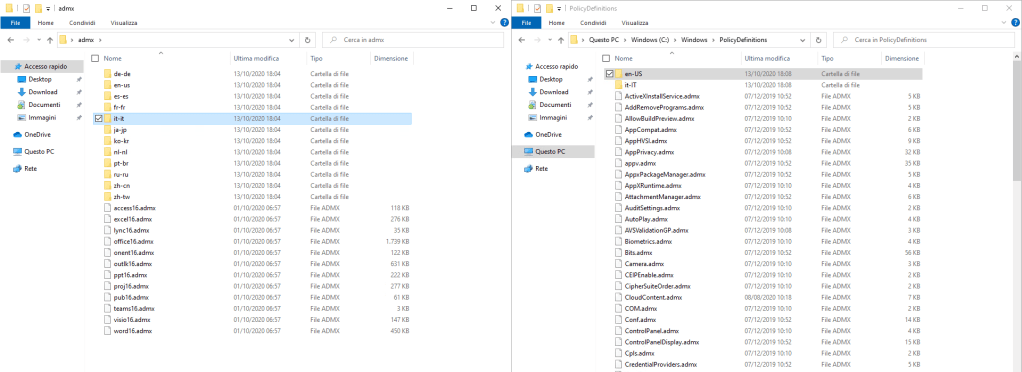
  • Copy the outlk16.admx file to %systemroot%\PolicyDefinitions\
  • Based on the language folders you see in your WVD host copy the outlk16.adml file from the admx\xx-xx folder to the relative folder in %systemroot%\PolicyDefinitions\
  • Open gpedit.msc
  • Go to User Configuration > Administrative Templates > Microsoft Outlook 2016 > Account Settings > Exchange > Cached Exchange Mode.
  • Set “Use Cached Exchange Mode for new and existing Outlook profiles” to Disabled

Error 53 when mounting Azure File Share – Azure

If you get an error 53 when trying to mount an Azure File Share, you got two main issues that might be causing it.

Port 445 is blocked

To check the effettive connection, and start the troubleshooter, run the following:


login-azaccount

$ResourceGroupName = "ba-weu-wvd-rg"
$StorageAccountName = "baweufslogixsa"

$storageAccount = Get-AzStorageAccount -ResourceGroupName $resourceGroupName -Name $storageAccountName
Test-NetConnection -ComputerName ([System.Uri]::new($storageAccount.Context.FileEndPoint).Host) -Port 445

If the error is, on the other hand, NTLMv2 is not enabled, please note that Azure files only supports NTLMv2 (not v1). Set the value of the following key to 3 on your local PC/Server:

HKLM\SYSTEM\CurrentControlSet\Control\Lsa > LmCompatibilityLevel

How to cancel a reservation – Azure

To cancel a reservation you have to have specific permissions on the reservation order. The permissions are not inherited from the subscription, so… contact who created the reservation (or just open a ticket with the Azure Engineers).

Once you have the right account, (or you’ve been given the permissions) go to the reservations tab in the Azure Portal. It’s best to have at least a couple of people who have permissions on the resource. To get to the reservations tab follow the link below:

https://portal.azure.com/#blade/Microsoft_Azure_Reservations/ReservationsBrowseBlade

Select the reservation you want to cancel and click on the name of the resource.

From the top click on “Refund”

Click on return reserved instances once you see the “Refund subtotal” pop up

Please refer to the following docs for additional informations:

https://docs.microsoft.com/en-us/azure/cost-management-billing/reservations/exchange-and-refund-azure-reservations

https://docs.microsoft.com/en-us/azure/cost-management-billing/reservations/manage-reserved-vm-instance#add-or-change-users-who-can-manage-a-reservation

Move resources request is blocked by an Azure Backup job.

Error message:

The move resources request contains resources like “*OsDisk*” that are being backed up as part of a Azure Backup job. Browse the link https://aka.ms/vmbackupmove for information

If you encounter this error check if the VM’s backup is stopped. If it’s stopped you need to remove the istant snapshot that has been created by the system:

  1. Find the location of your virtual machine.
  2. Find a resource group with the following naming pattern: AzureBackupRG_<location of your VM>_1. For example, AzureBackupRG_westus2_1
  3. In the Azure portal, check Show hidden types.
  4. Find the resource with type Microsoft.Compute/restorePointCollections that has the naming pattern AzureBackup_<name of your VM that you're trying to move>_###########.
  5. Delete this resource. This operation deletes only the instant recovery points, not the backed-up data in the vault.
  6. After the delete operation is complete, you can move your virtual machine.

List source: https://docs.microsoft.com/en-us/azure/azure-resource-manager/management/move-limitations/virtual-machines-move-limitations#portal

VM has reported a failure when processing extension ‘joindomain’ – AVD

If you encounter this error while creating a new VM from the host pool wizard, try following these suggestions to solve the issue, or at least drill down on the problem:

  • Check whether you can resolve your domain from your VNET
  • Check what DNS Servers are configured on your VNET, correct accordingly (follow this guide: Change VNet DNS Servers)
  • Check if you have permissions to join the domain using the credentials you provided
  • Check if the specified credentials are correct
  • Check if the domain to join (and the OU), specified in the wizard, is correct (parameters in the JSON: domainToJoinouPathexistingDomainUPNexistingDomainPassword).
  • Try to join a VM to the domain from the same network and subnet

If all the above are met, you should be able to join the VM successfully to the domain. If not, at least you should have more context to further troubleshoot the issue.

Activate Azure Update Management for on premise servers using Log Analytics

Requirements:
i. Log Analytics workspace
ii. Azure Automation Account

From the Log Analytics Workspace, click Connect a data source
Save the Workspace ID and Workspace key
Install the agent on the server, providing the Workspace ID and Key found in the workspace

Go into the automation account, then from the left into update management
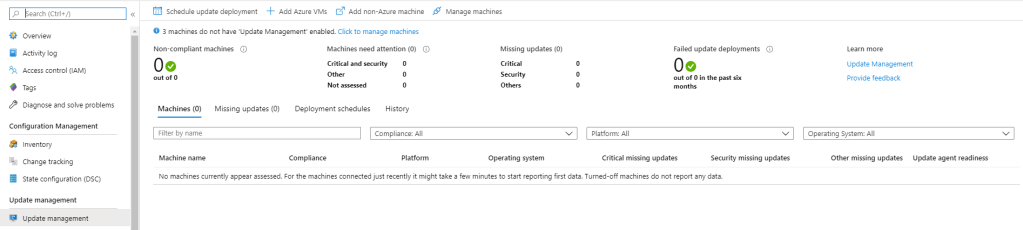
Enable update management on the VM by clicking on “Click to manage machines”

You can then see the missing updates and create an update deployment

Please allow up to 24hrs for all the servers to show up (it usually takes about an hour)