Enable Modern Authentication for Outlook 2013

Since Microsoft will soon start to turn off Basic Authentication for Exchange Online, you’ll have to enable Modern Authentication client-side if you still have some machines running Outlook 2013 and want them to connect to Office 365. This is quickly done by adding some registry keys. Modern authentication is already enabled by default in Office 2016 and later versions.

This process will activate the Modern Authentication workflow for all the apps included in Office 2013 (Outlook 2013, Excel 2013, Word 2013, OneNote, etc.), not just Outlook.

While this procedure will allow you (for now) to connect to Office 365, it is critical to remember that connection to Office 365 and Exchange Online via Office 2013 is not supported anymore. You should update to a newer and supported version soon, as things might stop working without notice.

To enable the feature, either open an elevated CMD and paste these commands in or add the entries manually via Registry Editor.

CMD:

reg add HKEY_CURRENT_USER\Software\Microsoft\Exchange /v "AlwaysUseMSOAuthForAutoDiscover" /t REG_DWORD /d 1 /f
reg add HKEY_CURRENT_USER\Software\Microsoft\Office\15.0\Common\Identity /v "EnableADAL" /t REG_DWORD /d 1 /f
reg add HKEY_CURRENT_USER\Software\Microsoft\Office\15.0\Common\Identity /v "Version" /t REG_DWORD /d 1 /f

REGISTRY EDITOR:

Path ValueTypeValue
HKEY_CURRENT_USER\Software\Microsoft\ExchangeAlwaysUseMSOAuthForAutoDiscoverREG_DWORD1
HKEY_CURRENT_USER\Software\Microsoft\Office\15.0\Common\IdentityEnableADALREG_DWORD1
HKEY_CURRENT_USER\Software\Microsoft\Office\15.0\Common\IdentityVersionREG_DWORD1

Restrict access to Azure Management apps – Azure AD

If we want to restrict access to the Azure management services for non-privileged users, we can now create a Conditional Access Policy that allows us to do so.

To create a Conditional Access Policy, we’ll need Azure Active Directory Plan 1 or higher, which is either bought standalone, or can be found most notably inside Microsoft 365 Business Premium, or the Microsoft 365 Enterprise plans (E3, E5)

On the other hand, if we just need to restrict access to Azure AD, we have the option to do so from the User Settings in the Azure AD portal:

User Settings | Azure AD

By creating the following Conditional Access Policy, we will restrict users from accessing these apps:

  • Azure portal
  • Azure Resource Manager provider
  • Classic deployment model APIs
  • Azure PowerShell
  • Azure CLI
  • Azure DevOps
  • Azure Data Factory portal
  • Azure Event Hubs
  • Azure Service Bus
  • Azure SQL Database
  • SQL Managed Instance
  • Azure Synapse
  • Visual Studio subscriptions administrator portal

First, open the following link, or go into your Conditional Access Policies:

Conditional Access Policies | Azure AD

Then, under “Users or workload identities“, select all users, and exclude the admin roles you currently use in your organization. You could also create a security group with all admin users as members and then exclude it from the policy.

Under “Cloud apps or actions”, click on “Selected apps”, then “Microsoft Azure Management“.

Finish up by selecting “Block access” under the Grant Access Controls.

From now on, all users except the admins will be blocked from accessing Azure management services.

Additional Context and Number Matching User Guide – MFA

General introduction

In this article I want to illustrate how I would notify my users of the upcoming activation of Additional Context and Number Matching in their MFA requests.

If you are looking for a guide on how to enable Additional Context and Number Matching, follow the guide linked below.

Feel free to use the message below as your own. The images are taken from the Microsoft Docs.

─────────────────────────────────────────────────────────

User guide

From [replace with activation date] forward, you will be asked to enter additional details in your MFA (Multi-factor authentication) prompts. 

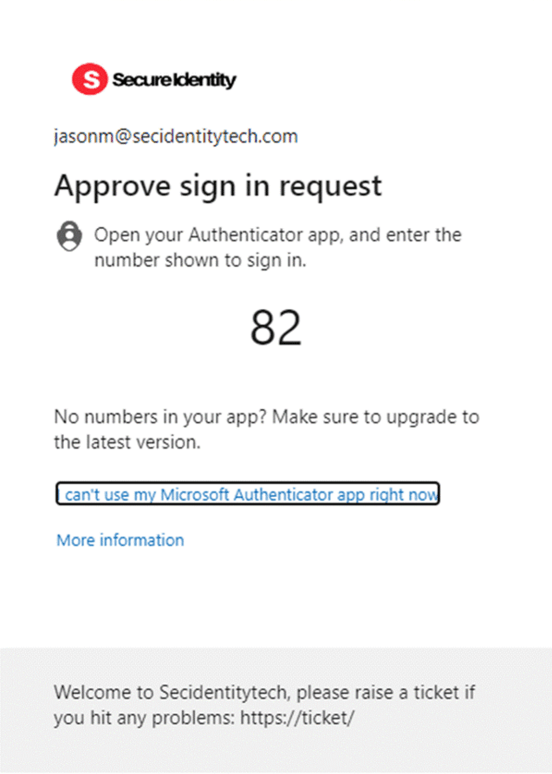
On your PC screen, you will be presented with a number, and you will be asked to enter this same number inside of your MFA request on your phone to complete the approval.  

You will also get a map that will show the location where the request was made from. This must be taken as a general indication and it’s not always going to be your exact location, since Internet providers are not bound to route your connection from a point closest to you.  

Please deny and report immediately to the IT department if you receive a request that was not done by you, or you do not recognize the location you are being shown. 

PC Screen view and smartphone view 


Find stale Enterprise Applications – Entra ID

If you’ve recently restricted user registration for applications or are analyzing your Enterprise applications, you might find a significant amount of work ahead.
First, you may want to find if there are applications with no user assigned. Then you may wonder if there are applications without sign-ins in the last 30 days.

To ease your work, you may find it useful to query all applications for these fields and get the output in a CSV. This script is based on Ravenswood PoC code, with the intent of helping out and refining it a bit.

First, head to Enterprise Applications | AAD and click “Download (Export)”, then download the CSV.

This is done via the portal and not via PowerShell for practicality. If you are not interested in reviewing Microsoft Applications, filter the csv file to just keep “Enterprise Application” under applicationType. This will greatly improve the processing time.

Then save the following script in the same directory where you downloaded the EnterpriseAppsList.csv. Name the script StaleApplicationAnalysis.ps1.

The script will require AzureADPreview.
Update 2024: The script does not detect non-interactive sign-ins. To detect non-interactive sign-ins, Get-MgAuditLogSignIn should be used. I have not modified this script yet to use Graph.

# Connect to Azure AD
# Check if AzureAD module is installed
if (-not (Get-Module -Name AzureADPreview -ListAvailable)) {
    Write-Host "AzureADPreview module is not installed. Installing..."
    Install-Module -Name AzureADPreview -Force
}
 
# Import AzureAD module
try {
    Import-Module -Name AzureADPreview -ErrorAction Stop
    Write-Host "AzureADPreview module imported successfully."
} catch {
    Write-Host "Failed to import AzureADPreview module: $_" -ForegroundColor Red
}
 
Connect-AzureAD
 
$AllApplications = Import-Csv .\EnterpriseAppsList.csv
$Output = @() # Array to store output objects

foreach ($Application in $AllApplications) { 
    # Retrieve the objectid and signin logs, format the user assigned to the app 
    $app = Get-AzureADServicePrincipal -All $true | where { $_.objectid -eq $application.id }
    $Log = Get-AzureADAuditSignInLogs -All $true -Filter "appid eq '$($App.AppID)'"
 
    $userassigned = Get-AzureADServiceAppRoleAssignment -ObjectId $App.ObjectId | Select ResourceDisplayName, PrincipalDisplayName
    $userCount = 0
    if ($userassigned -ne $null) {
        $format = $userassigned.GetType()
        if ($format.basetype.name -eq "Object") { 
            $userassigned = [string]$userassigned
        }
        $userCount = $userassigned.Count;
    }
    # Create a custom object for output 
    $Table = [PSCustomObject]@{ 
        ApplicationName = $App.DisplayName 
        ApplicationID = $App.AppID 
        SignIns = $Log.Count
        Users =  $userCount
    }
    $Output += $Table
    $Table
    Start-Sleep 4 # The sleep is to avoid throttling
}

# Export the output to CSV
$Output | Export-Csv -Path .\StaleApplicationCleanup.csv -NoTypeInformation

And finally, run the script. This will take a bit of time since I had to implement a sleep timer to prevent throttling.

.\StaleApplicationAnalysis.ps1

The output will be along these lines, with an additional column for the App ID:

If you happen to find any optimization, feel free to let me know, and I’ll update the post.

Microsoft Secure Score not updating

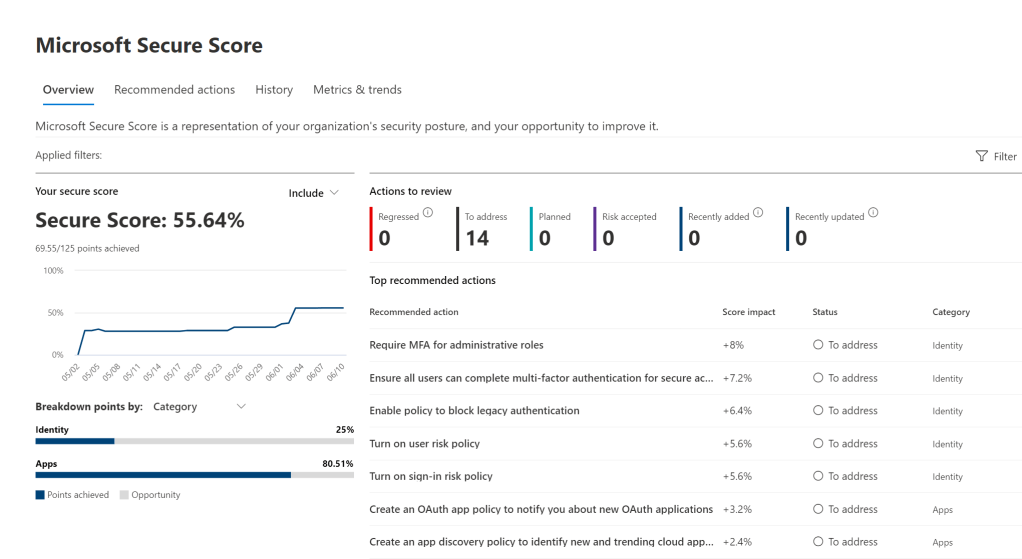
The Microsoft Secure score is a useful page to get an idea of the general improvement areas you should monitor and approach in your tenant.

When you make a change to reflect one of the improvement actions, you might have to wait up to 48 hours to get the points in the portal.

If you have waited the 48 hours (generally, it’s 24 hours, but the job might fail), check that the policies you created were configured as recommended in the “implementation” tab, then try the following.

First, check if there is some degradation with the service.

If there isn’t degradation, try changing the Conditional Access Policy (or the security policy you enabled) and see if the secure score catches up.

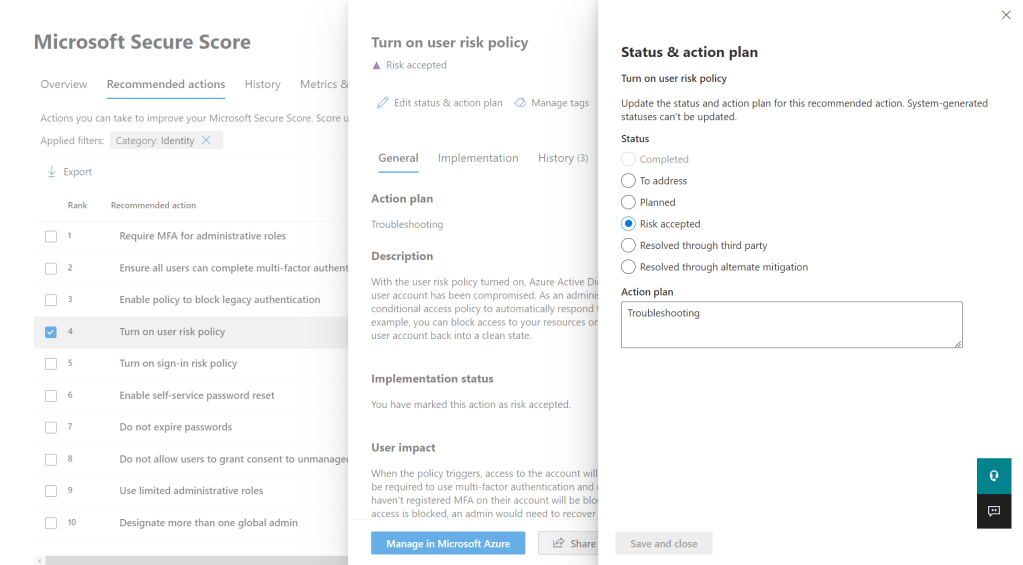
If it didn’t, or you are in a hurry, click on the recommended action, “Edit status & action plan”, and resolve the suggestion as risk accepted, then wait for the score to update. Once you see that the full points are awarded, revert the change. This procedure should “force” the sync to grant you full points, then change it with the actual value.

If the above failed, contact Microsoft Support and request a manual restart of the job.

Either that will solve it, or in some cases, just waiting a couple more days will fix it.

Secure Teams, a step by step hardening guide

This is a brief and introductory guide on what you may want to configure and change in a basic hardened Teams environment. Please consider that these are just general recommendations, and what works for a company may not be the best for another one. This is especially true when it comes to setting up collaboration services. Keep in mind that your Teams security is only as good as your identity security

It’s helpful to note that some companies require that users should not be able to create new teams, depending on your internal policies. This is done by limiting the creation of Microsoft 365 groups using the following setting: Groups – Microsoft Azure – Users can create Microsoft 365 groups in Azure portals, API or PowerShell. The same is also available via PowerShell in a more complete way. 

Before diving into the settings, you may consider the following, that will not be discussed further, but are non the less important:

  • You should already have a basic hardened Azure AD environment (or AD + AAD if you are in an hybrid scenario). Your Teams security will be only as good as your identity security. For example, if you don’t have MFA set up yet or you are not blocking legacy authentication protocols, you might be better off starting from there.
  • You should consider setting up retention and expiration policies for Teams, especially if you will let users create teams freely.
  • DLP and sensitivity labels should be created and applied.
  • You should monitor user activity often via the Teams portal.
  • Enhanced encryption policies should be evaluated on a company by company basis since it disables recording and transcription.
  • You should start using and configuring Cloud App Security
  • Live event policies should be evaluated based on whether your company uses them.
  • Voice settings should be evaluated on a customer by customer basis, depending on what you have to implement and your general infrastructure.

Follow along by opening the Teams Admin center and evaluating these settings.

Teams -> Teams settings:

  • Turn OFF all external file sharing and cloud file storage options in the Files tab if they are not company approved.
  • “Users can send emails to a channel email address” should be set to OFF, or only specified domains should be allowed
  • “Scope directory search using an Exchange address book policy” controls how users find and communicate with other people in their organization. This may help users out, but it’s not a “must set”.

Teams -> Teams Policies:

  • Consider creating new policies for more granular management. The settings could be left all on if no specific stricter need arises.

Teams -> Teams Update policies:

  • You may want to consider setting “Show Office Preview” as not enabled. This is, however, not critical.

Teams -> Teams Upgrade settings:

  • Coexistence mode should be set to Teams Only if you are not using Skype for Business.

Users -> Guest access:

  • “Make private calls” should be set to OFF since there is mostly no need for a guest to make calls “using” your tenant.
  • “Meet Now” should be set to OFF.
  • “Edit sent messages” should be set to OFF.
  • “Delete sent messages” should be set to OFF.
  • “Delete chat” should be set to OFF.

Users -> External access:

  • Here, you can either allow all external domains, allow only specific domains or only block specific ones. This setting is very dependent on your organization and your risk acceptance level. Most SMBs are blocking specific domains.
  • Allow users in my organization to communicate with Skype users should mostly be set to OFF. The same goes for “People in my organization can communicate with Teams users whose accounts aren’t managed by an organization”.

Teams apps -> Permission policies:

  • You either go for a restrictive global policy or create tailored policies later. Whatever is best for your use case.
  • Third-party apps should be set to Block all apps if you are not using any.
  • Custom apps should be set to Block all apps if you are not using any.

Meetings -> Meeting policies:

  • You either go for a restrictive global policy or create tailored policies later. Whatever is best for your use case.
  • “Let anonymous people join a meeting” should be set to OFF.
  • “Let anonymous people start a meeting” might be set to OFF.
  • “Who can present in meetings” should be set to “Organizers, but users can override”.
  • “Automatically admit people” should be set to “Invited users only”.
  • “Dial-in users can bypass the lobby” should be set to OFF.

Meetings ->Meeting settings:

  • Anonymous people can join a meeting should be set to OFF
  • Anonymous users can interact with apps in meetings should be set to OFF
  • “Insert Quality of Service (QoS) markers for real-time media traffic” is usually set to ON. Not a deal-breaker, but it’s sometimes helpful to get insights.

Meetings -> Messaging policies

  • Owners can delete sent messages should be set to OFF if you don’t need moderation in Teams.
  • Delete sent messages may be set to OFF, if the need arises.
  • Delete chat should mostly be set to OFF.
  • Edit sent messages may be set to OFF, if the need arises.
  • Read may be set to “Turned on for everyone”, but it’s not a priority.
  • Giphy content rating should be set to “Moderate”.

You should set rules under “Notifications & alerts”, as they are more free insights that you get.

If you use Skype for Business, you may want to configure the policies found under Other settings -> Skype for Business.

How to check which Conditional Access Policy is blocking a user log-in – Azure AD

General Introduction

If you have Conditional Access Policies in place to block certain log-ins, you might get that a user will contact you because their sign-in request is being blocked. Probably both you and the user don’t know which policy is making the log-in fail, since it’s not specified in the error message.

The usual error message is something along the lines of: “Your sign-in was successful, but does not meet the criteria to access this resource. For example, you might be signing in from a browser, app or location that is restricted by your admin.” and the standard error code is “BlockedByConditionalAccess” error 53003

How to solve

To get more details:

  • Click on the failed log-in request
  • Click on “Conditional Access
  • The Policies that have as a result “Failure” and “Grant Controls” set on “Block” are the ones blocking the user.

Enable idle session timeout for Microsoft 365

In the last few days, Microsoft implemented a timeout feature for the Microsoft 365 portal and the Office web apps. The aim is to disconnect a user if no activity is received. This will go on to become a global setting: “Idle session timeout for Microsoft 365 web apps will eventually replace current idle timeout settings in Outlook Web App (OWA) and SharePoint Online (SPO)”. This feature is not tab specific, so if you interact with Word (web app), you won’t be signed out from Outlook (web) that you have open in another tab.

You can check out the roadmap here:

Office App: Idle session timeout for Microsoft 365 web apps

I’ve noticed some inconsistencies in the practical application, which will be probably ironed out during the next months.

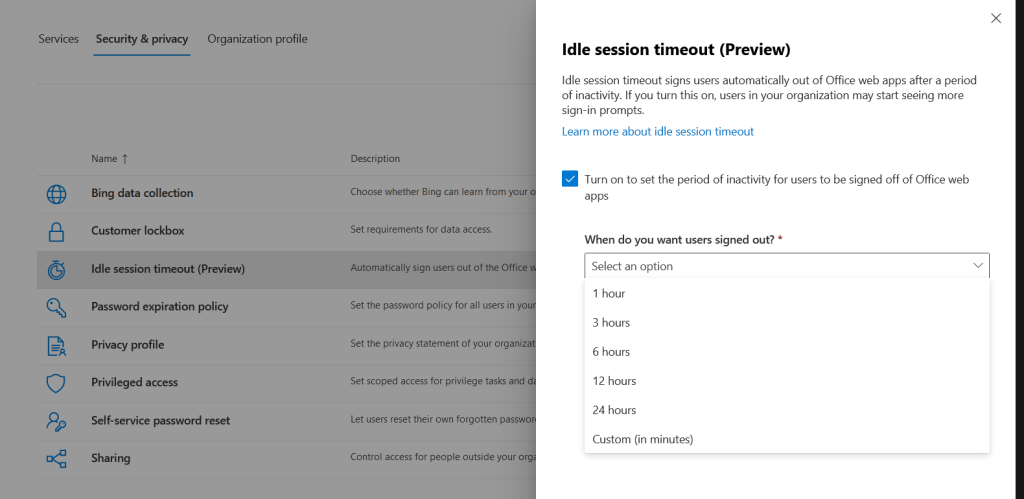
To enable this feature, open the following link, or go to Settings -> Org setting -> Security & privacy -> Idle session timeout (Preview).

Idle session timeout (Preview)

Click on “Turn on to set the period of inactivity for users to be signed off of Office web apps”, then set the timeout period and click “Save”.

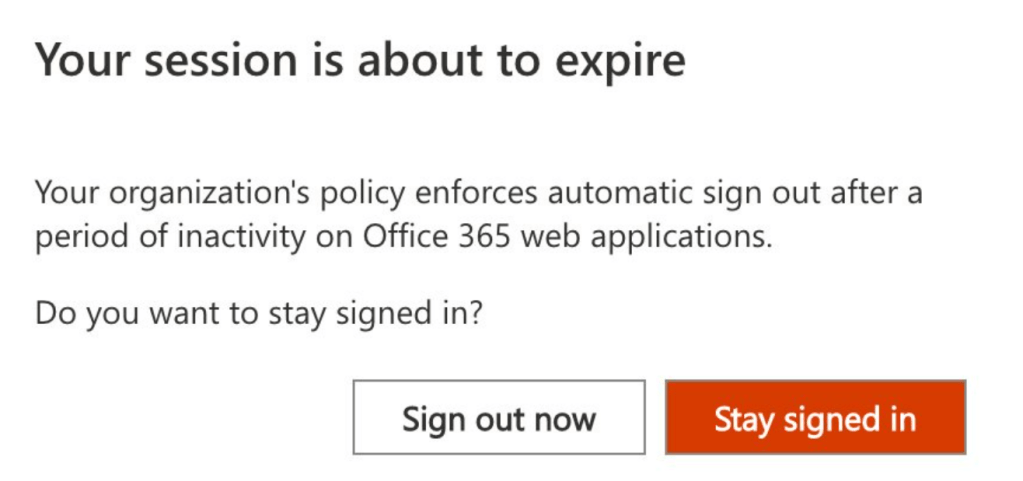
Once you are done, users will get the following prompt if they do not interact with the Office tabs for the configured period.

There is no way of removing the “Stay signed in” option for now, which lets the user keep the sessions from disconnecting.

The GA is expected by June 2022.

Apple Mail not working after disabling Legacy Authentication – Exchange Online

If just enabled a Conditional Access Policy blocking legacy authentication to Exchange Online, enabled Security Defaults, or Microsoft disabled it for your tenant, you might see some Apple Mail clients not connecting anymore.

This issue is happening because the profile might be still configured to use Exchange ActiveSync to connect to Exchange Online, and EAS (along with other legacy protocols) will be retired in October 2022.

Apple supports an automatic switch to modern authentication for its profiles, but only if it was freshly configured after iOS 12.

Unfortunately, it seems that backing up and restoring profiles does not trigger the switch to modern auth, so if you moved to a new iPhone and didn’t reconfigure the profile manually, you’ll need to remove and recreate it.

UPDATE 16.06.2022:

Apple will add support for the automatic migration to modern auth in iOS 15.6. Once you update your Apple device, the Mail app will use the saved credentials to establish a new authentication flow. From that moment onward, you’ll authenticate to Azure AD (Microsoft online Identity Provider) and get a new OAuth access token. The “old” stored credentials will then be removed. The process is fully transparent to users.

Read the full announcement here: Microsoft and Apple Working Together to Improve Exchange Online Security

Scan now is greyed-out in Azure Information Protection – AIP

If you just installed the Azure Information Protection on-premises scanner and you are trying to start your first Content Scan Job, you might get that the button “Scan now” is greyed out.

Before attempting to troubleshoot, check that you selected the job below. If you did, try restarting the service “Azure Information Protection Scanner” on the SQL server and refreshing the Azure Content scan job page.

If you still cannot start the scan, try executing the following command on the SQL server, and insert the credentials of the service account:

$scanner_account_creds= Get-Credential
Start-AIPScannerDiagnostics -onbehalf $scanner_account_creds -Verbose -VerboseErrorCount 50

For further information refer to the following articles:

Troubleshooting your unified labeling on-premises scanner deployment

Start-AIPScannerDiagnostics

Enable number matching and additional context with Microsoft Authenticator – Azure AD

General Introduction

It’s been a long time since Microsoft released number matching and additional context for the Microsoft Authenticator. These features allow you to quickly improve your MFA posture, adding a new layer of security and preventing accidental approvals. This is also useful to lower the chances of being compromised by MFA fatigue attacks.
The feature consists in a map shown on your MFA prompt on your phone that indicates where the MFA request is coming from, the name of the application requesting the MFA challenge, and a box to insert the number that will be shown on screen.

Image taken from the Microsoft Docs. Link in the notes


How to enable it

To enable these features follow this link, which will guide you into Azure AD > Security > Authentication methods:

Authentication methods | Azure AD

From here, click “Microsoft Authenticator“.

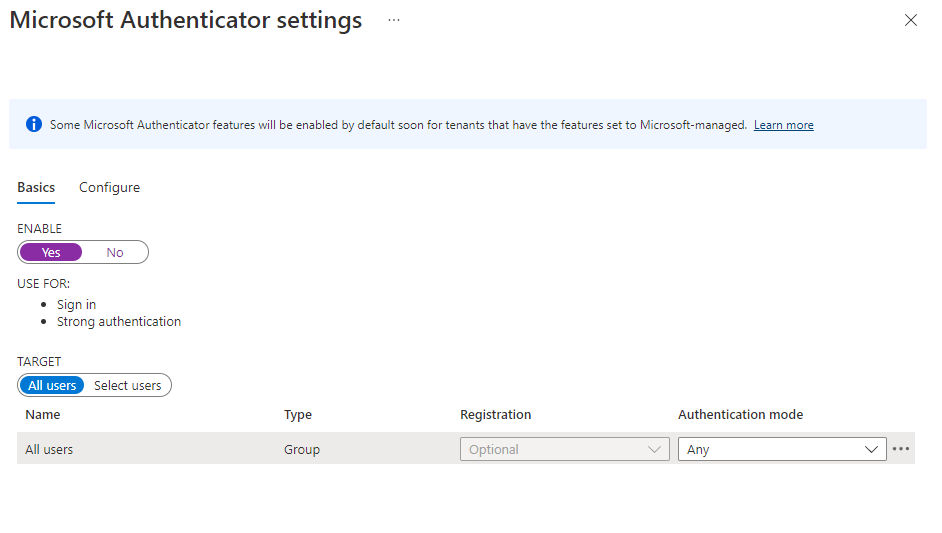
Click “Yes” under “ENABLE“, then on “Configure“.

Be sure to activate “Require number matching for push notifications“, “Show application name in push and passwordless notifications” and “Show geographic location in push and passwordless notifications“, then save.

You can scope the features to a selected group of users if you want to test them out and go for a gradual rollout. This is done by selecting “Select group” and adding the group for which you want to enable the feature.


Additional notes

Check out this article if you are looking for a communication to send out to users before rolling out the features:

Here is a link to the Microsoft Documentation:

How to use number matching in multifactor authentication (MFA) notifications – Authentication methods policy

Here is a link to the CISA documentation on the topic:

Implementing Number Matching in MFA Applications | CISA

ResourceNotTopLevel error when trying to move resources – Azure

When you transfer Azure resources between subscriptions, you might get the following error: “ResourceNotTopLevel“.

This is caused by the fact that you only have to select top-level resources for the move, and the dependencies will be moved automatically.

For example, say you selected both a Network Watcher Extension and the relative VM you want to move. You will just need to move the VM object, and the extension will come with the server.

Example of an error code:


{
                "code": "ResourceNotTopLevel",
                "message": "Identifier '/subscriptions/0000000000000000000/resourceGroups/MoveResource/providers/Microsoft.Compute/virtualMachines/VMtobeMoved/extensions/AzureNetworkWatcherExtension' is not a top level resource. Please include only the top-level resource for this child resource in the move request. A child resource would be moved along with its associated top-level resource.\""
            }

From the error code, you’ll get that you just have to move the following resource, being the top-level one:

/subscriptions/0000000000000000000/resourceGroups/MoveResource/providers/Microsoft.Compute/virtualMachines/VMtobeMoved

It’s good to remember that if dependent resources are distributed across different resource groups, you’ll first have to move them into one resource group and then attempt the migration.

Cancel downloaded updates in Windows Server

If the server has downloaded automatically an update (such as the SharePoint ones), which you don’t want to install, try following these steps to delete the queue:

  • Open an elevated PowerShell, then run the following command
Stop-Service -Name "wuauserv"
  • Open an elevated PowerShell, then run the following commands to make a backup of the folders we’re going to delete.
cd C:\

'backupwinupdate', 'backupdatastore' | %{New-Item -Name "$_" -ItemType "Directory"}

Copy-Item -Path "C:\Windows\SoftwareDistribution\Download" -Destination "C:\backupwinupdate" -Recurse
Copy-Item -Path "C:\Windows\SoftwareDistribution\DataStore" -Destination "C:\backupdatastore" -Recurse
  • Check that the backup has been created, then proceed to delete the content of the original folders:
Get-ChildItem -Path C:\Windows\SoftwareDistribution\Download” -Include * -File -Recurse | foreach { $_.Delete()}
Get-ChildItem -Path C:\Windows\SoftwareDistribution\DataStore” -Include * -File -Recurse | foreach { $_.Delete()}
  • After clearing the content, you can proceed to start Windows Update:
Start-Service -Name "wuauserv"

You’ll need to reboot at the end of this procedure.

Be sure to clean up the backup folders C:\backupwinupdate and C:\backupdatastore

ASR Kernel modules fail to load while installing the Mobility Service (VMware) – Azure

If some kernel modules fail to load (such as in the example below) while installing the Mobility Service agent, please check:

  • If the kernel is supported in your Configuration Server version
  • If secure boot is enabled
#EXAMPLE using SUSE 15 SP2
exampleserver0:/tmp/ASR # sudo ./install -d /usr/local/ASR/ -r MS -v VmWare -q
All product pre-requisties are met.
Generating the certificate.
[...]

Filter driver kernel module is not loaded. Attempting to load it, please wait...
insmod /lib/modules/[kernelversion]-default/kernel/drivers/char/involflt.ko 
Filter driver could not be loaded successfully.
Check the log file /var/log/ua_install.log for detailed diagnostic messages or installation success/failures...
Vx agent installation exit code : 208.
Check the log file /var/log/ua_install.log for detailed diagnostic messages or installation success/failures...
Installer exiting with code: 208

Check the following page to see if the kernel version is supported:

https://docs.microsoft.com/en-us/azure/site-recovery/vmware-physical-azure-support-matrix#ubuntu-kernel-versions

If it’s supported try launching the following command:

mokutil --sb-state

If it’s enabled you should get something along the lines of:

SecureBoot enabled

Please note that SecureBoot is not supported at the moment with VMware DR in ASR:

https://docs.microsoft.com/en-us/azure/site-recovery/vmware-physical-azure-support-matrix#storage

To disable SecureBoot proceed as following:

  • Click on the virtual machine in vSphere (or vCenter)
  • Shut down the VM
  • Click on Edit Settings
  • Go in VM Options, then Boot Options
  • Deselect the Secure Boot check box
  • Click on OK
  • Start the VM


IdFix – Pre AdConnect assessment for your on-prem AD

IdFix is a tool to discover and remediate identity problems pre synchronization to Azure Active Directory.

To use IdFix you will need:

  • A domain joined computer / server
  • A user account with at least read access to the AD objects

The process is really straightforward.

Get IdFix from here:

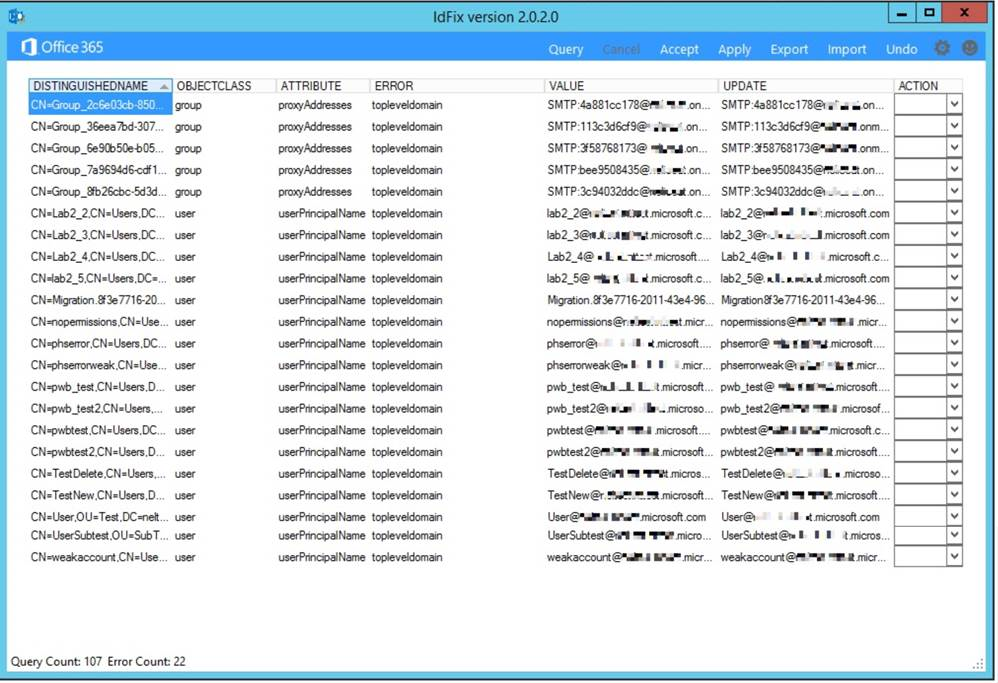
Install and open IdFix, then click on “Query”.

After the process has been completed you will be shown all the problems you might have with your environment, if any.

Screen shot of the tool running
Image from https://microsoft.github.io/idfix/operation/

If no errors are shown, or you are confident you can work around them, you can begin the synchronization.

Links:

Set up synchronization:

https://docs.microsoft.com/en-us/microsoft-365/enterprise/set-up-directory-synchronization?view=o365-worldwide

Microsoft guide on how to use IdFix:

https://microsoft.github.io/idfix/operation/

Enable Known Folder Move using regedit – OneDrive

Known Folder Move is a “new” functionality in OneDrive that enables you to seamlessly recreate the same user experience across multiple devices .

Expecially useful in a Windows Virtual Desktop / VDI environment, it automatically syncs all the “Known Folders” (Desktop, Documents, Pictures etc.) when a user logs in.

To enable it via Registry Editor you’ll first have to get your tenant ID. Find it here under “Directory ID”:

https://portal.azure.com/#blade/Microsoft_AAD_IAM/ActiveDirectoryMenuBlade/Properties

Then you can proceed to create a new string value in HKEY_LOCAL_MACHINE\SOFTWARE\Policies\Microsoft\OneDrive

Name: KFMSilentOptIn

Value: Insert your Office 365 Tenant ID

How to cancel a reservation – Azure

To cancel a reservation you have to have specific permissions on the reservation order. The permissions are not inherited from the subscription, so… contact who created the reservation (or just open a ticket with the Azure Engineers).

Once you have the right account, (or you’ve been given the permissions) go to the reservations tab in the Azure Portal. It’s best to have at least a couple of people who have permissions on the resource. To get to the reservations tab follow the link below:

https://portal.azure.com/#blade/Microsoft_Azure_Reservations/ReservationsBrowseBlade

Select the reservation you want to cancel and click on the name of the resource.

From the top click on “Refund”

Click on return reserved instances once you see the “Refund subtotal” pop up

Please refer to the following docs for additional informations:

https://docs.microsoft.com/en-us/azure/cost-management-billing/reservations/exchange-and-refund-azure-reservations

https://docs.microsoft.com/en-us/azure/cost-management-billing/reservations/manage-reserved-vm-instance#add-or-change-users-who-can-manage-a-reservation

VM has reported a failure when processing extension ‘joindomain’ – AVD

If you encounter this error while creating a new VM from the host pool wizard, try following these suggestions to solve the issue, or at least drill down on the problem:

  • Check whether you can resolve your domain from your VNET
  • Check what DNS Servers are configured on your VNET, correct accordingly (follow this guide: Change VNet DNS Servers)
  • Check if you have permissions to join the domain using the credentials you provided
  • Check if the specified credentials are correct
  • Check if the domain to join (and the OU), specified in the wizard, is correct (parameters in the JSON: domainToJoinouPathexistingDomainUPNexistingDomainPassword).
  • Try to join a VM to the domain from the same network and subnet

If all the above are met, you should be able to join the VM successfully to the domain. If not, at least you should have more context to further troubleshoot the issue.

Microsoft Assessment and Planning (MAP) Toolkit – Minimum user requirements to run a scan

To scan the servers / PCs using the MAP Toolkit, you will need an AD user with administrative privileges on all the components to scan.


This will be enough if you need a report of what’s installed on a series of servers/clients, their roles, and all “local” related queries, or basic AD queries.

For Exchange related queries, you will need an Exchange Admin or Domain Admin.
Please refer to the following TechNet page for the full requirements:


https://social.technet.microsoft.com/wiki/contents/articles/17807.map-toolkit-credentials-required.aspx

Enable SMTP AUTH for a mailbox – Office 365

If you try to set up a printer / external device with SMTP you might encounter an authentication error.

This is caused by the fact that Microsoft now disables SMTP AUTH for the tenant and the new mailboxes created on Office 365 by default.

To enable SMTP AUTH for a mailbox follow this steps:

  • Go into Users
  • Click Active Users
  • Select the user
  • Click Mail
  • Click Manage email apps
  • Enable Authenticated SMTP by flagging it
  • Save

This might take a couple of hours before it’s activated.

To check where it’s enabled use the following command:

Get-CASMailbox

If it returns False under SmtpClientAuthenticationDisable, then it’s enabled.

To enable it for the whole organization send the following PS command:

Set-TransportConfig -SmtpClientAuthenticationDisabled $true

Quick troubleshooting for generic OneDrive issues

Here are some common troubleshooting steps that can be used if you are experiencing issues with OneDrive:

  1. Exit the OneDrive Desktop App and open it again
  2. Check for Disk space in the local PC. Check if the storage quota on OneDrive has been reached
  3. Check if the file path has exceeded the 255 characters quota or the 15 GB quota
  4. Right click the OneDrive icon, then go under Settings, Office and deselect “Use Office to sync Offices files that i open”. Save, exit, then enable it again.
  5. Reset OneDrive using the following command. No data will be lost: %localappdata%\Microsoft\OneDrive\onedrive.exe /reset
  6. If after the reset you don’t see any folder listed as synchronized on the device start the synchronization again from SharePoint. After you synchronize the first one the others will pop back up in the synchronized folders tab.