ASR Kernel modules fail to load while installing the Mobility Service (VMware) – Azure

If some kernel modules fail to load (such as in the example below) while installing the Mobility Service agent, please check:

  • If the kernel is supported in your Configuration Server version
  • If secure boot is enabled
#EXAMPLE using SUSE 15 SP2
exampleserver0:/tmp/ASR # sudo ./install -d /usr/local/ASR/ -r MS -v VmWare -q
All product pre-requisties are met.
Generating the certificate.
[...]

Filter driver kernel module is not loaded. Attempting to load it, please wait...
insmod /lib/modules/[kernelversion]-default/kernel/drivers/char/involflt.ko 
Filter driver could not be loaded successfully.
Check the log file /var/log/ua_install.log for detailed diagnostic messages or installation success/failures...
Vx agent installation exit code : 208.
Check the log file /var/log/ua_install.log for detailed diagnostic messages or installation success/failures...
Installer exiting with code: 208

Check the following page to see if the kernel version is supported:

https://docs.microsoft.com/en-us/azure/site-recovery/vmware-physical-azure-support-matrix#ubuntu-kernel-versions

If it’s supported try launching the following command:

mokutil --sb-state

If it’s enabled you should get something along the lines of:

SecureBoot enabled

Please note that SecureBoot is not supported at the moment with VMware DR in ASR:

https://docs.microsoft.com/en-us/azure/site-recovery/vmware-physical-azure-support-matrix#storage

To disable SecureBoot proceed as following:

  • Click on the virtual machine in vSphere (or vCenter)
  • Shut down the VM
  • Click on Edit Settings
  • Go in VM Options, then Boot Options
  • Deselect the Secure Boot check box
  • Click on OK
  • Start the VM


ASR Data change rate is beyond supported limits

If you see the event “Data change rate beyond supported limits” in the ASR replicated items logs, you probably need to change the disk type of your managed disks for that Virtual Machine.

I would advise waiting a bit to check if the error disappears or remains consistent.

To change the disk size go to:

  • Disks
  • Select the disk specified in the error message above
  • Click on Configuration
  • Under Account type switch from “Standard HDD” to “Premium SSD” (or “Standard SSD”)
  • Save

Cannot enable protection for a VM in ASR “This operating system isn’t supported in Azure”

If you get the following error, please check if the OS and kernel versions are supported:

https://docs.microsoft.com/en-us/azure/site-recovery/vmware-physical-azure-support-matrix

If they are supported, you can install manually the agent on the VM. If it doesn’t work, try checking if the VM in VMware is configured as “Other (64-bit)” in the guest OS version. If it is, you should change the version to the specific Linux distribution you got installed. Mind that the VM must be shut off to change the Guest OS version.

To install manually the agent follow these steps:

  • Go under %ProgramData%\ASR\home\svsystems\pushinstallsvc\repository in your ASR server and copy the “Microsoft-ASR_UA*_GA*.tar.gz” file specific to your distribution.
  • Copy the file to the VM. I would recommend creating a specific folder for the file under /tmp
  • Copy the Conf server passphrase to the server
  • Unpack the file: tar -xvf Micorosft-ASR_UA_yourfile.tar.gz
  • Run the following command as root: ./install -d /usr/local/ASR -r MS -v VmWare -q
  • Register the mobility service to the Conf server: /usr/local/ASR/Vx/bin/UnifiedAgentConfigurator.sh -i ConfserverIP -P /var/passphrase.txt

Recover ASR Configuration server passphrase

To recover your passphrase sign into the configuration server, then open a command line.

Change directory using:

cd %ProgramData%\ASR\home\svsystems\bin

then to export your passphrase using the following command:

genpassphrase.exe -v > connection.passphrase

Open the file with notepad to get the key:

Notepad "connection.passphrase"

Remove UDR from a subnet with a private endpoint associated – Azure

If you try to remove a UDR from a subnet that contains private endpoints, you may get the following error:

Failed to dissociate subnet 'SubnetName'. Error: Private endpoint network policies cannot be enabled on private endpoint subnet 'FullPathSubnet' .

To resolve run the following command using Azure CLI. Keep the route table parameter blank.

az network vnet subnet update -g MyResourceGroup -n MySubnet --vnet-name MyVNet --route-table ""

Password Hash Synchronization won’t update any user password

If AD Sync won’t update any user password across a domain follow these steps:

  • Open Microsoft Azure Active Directory Connect
  • Click Configure
  • Click Troubleshoot
  • Click Launch
  • In PowerShell type 2 (Enter ‘2’ – Troubleshoot Password Hash Synchronization)
  • Type 1 (Enter ‘1’ – Password Hash Synchronization does NOT work at all)

Usually, the output on your local AD Connector is:

Last successful attempt to synchronize passwords from this directory partition started at: [long time ago]

If this is the case proceed as follows:

  • Open Synchronization Service Manager
  • Click on Connectors
  • Click on your local connector (ex. domain.com)
  • Right-click, then open properties
  • Under Connect to Active Directory Forest insert the password for the user and click ok
  • Run an initial Sync in PowerShell: Start-ADSyncSyncCycle -PolicyType Initial

Enable Azure Serial Console for replicated Linux VMs – Azure

If you replicate a Linux VM right away you might end up with the serial console not working. This could be especially an issue if you have your network interfaces set as static and you have to change the IP addresses.

To enable the Serial Console you have to log into your on-premise Linux VM and run the following:

systemctl start serial-getty@ttyS0.service ​

systemctl enable serial-getty@ttyS0.service

Wait until the changes will be replicated, then connect directly from the Azure Console.

Windows – Cannot start WAS and W3SVC

If you get “System error 2 has occurred” when starting WAS (Windows Activation Services) and you also cannot start W3SVC (World Wide Web Publishing Service), try the following:

  • Open Regedit.msc
  • Go into HKEY_LOCAL_MACHINE\SYSTEM\CurrentControlSet\Services\WAS\Parameters
  • Locate the NanoSetup DWORD
  • Delete the NanoSetup DWORD
  • Open an elevated command prompt and run “net start was” and “net start W3SVC”

Change Outlook profiles from one month cache to online in AVD/WVD

Unfortunately, at this time, there is no way to change Outlook profiles from cached mode (1 month retention) to online mode in the Outlook settings.

To configure the cache settings in Outlook (2016/365) in a WVD session you need to use Active Directory GPOs or local Group Policies.

To use local group policies follow these steps:

  • Download the following ADMX in your environment: https://www.microsoft.com/en-us/download/details.aspx?id=49030
  • Extract the files
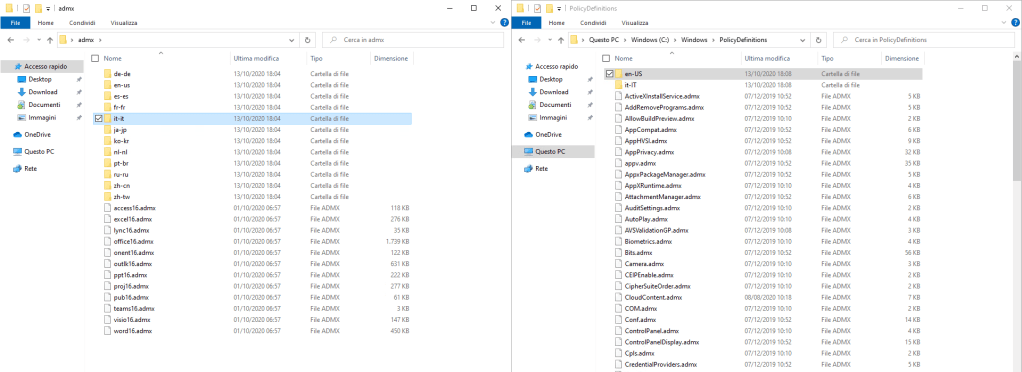
  • Copy the outlk16.admx file to %systemroot%\PolicyDefinitions\
  • Based on the language folders you see in your WVD host copy the outlk16.adml file from the admx\xx-xx folder to the relative folder in %systemroot%\PolicyDefinitions\
  • Open gpedit.msc
  • Go to User Configuration > Administrative Templates > Microsoft Outlook 2016 > Account Settings > Exchange > Cached Exchange Mode.
  • Set “Use Cached Exchange Mode for new and existing Outlook profiles” to Disabled

Check whether you are using an FSLogix profile in Azure Virtual Desktop – AVD

To check whether you are using an FSLogix profile in an AVD session enter the AVD instance, then browse to the following folder:

C:/Program%20Files/FSLogix/Apps

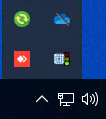
Open frxtray.exe and open the System Tray as shown in the following picture:

Right-click on the frxtray icon and click open:

From here you can see that we get “Profile status: Active”, which indicates that we are using an FSLogix profile. If you are using a local profile you will get a yellow light on the traffic light and a warning message.

Sysprep fails due to an app that was installed for a user, but not provisioned for all users

Example errors:

1. Package Microsoft.LanguageExperiencePackit-IT_19041.3.7.0_neutral__8wekyb3d8bbwe was installed for a user, but not provisioned for all users. This package will not function properly in the sysprep image.

2. SYSPRP Failed to remove staged package Microsoft.LanguageExperiencePackit-IT_19041.49.150.0_neutral__8wekyb3d8bbwe. Failed to remove apps for the current user.

To fix this kind of errors, mainly found in Azure Virtual Desktop implementations with custom languages, you must manually delete the app that was provisioned just for your current user, and that is crashing your sysprep attempts.

To fix the issue, take a snapshot of the client, then remove the provisioned app package:

Remove-AppxProvisionedPackage -Online -PackageName Microsoft.LanguageExperiencePackit-IT_19041.3.7.0_neutral__8wekyb3d8bbwe

Whatever output you get, complete the removal of the app using the following command:

Remove-AppxPackage -allusers Microsoft.XboxApp_31.32.16002.0_neutral_~_8wekyb3d8bbwe

You should now be able to sysprep the VM without issues.

Error 53 when mounting Azure File Share – Azure

If you get an error 53 when trying to mount an Azure File Share, you got two main issues that might be causing it.

Port 445 is blocked

To check the effettive connection, and start the troubleshooter, run the following:


login-azaccount

$ResourceGroupName = "ba-weu-wvd-rg"
$StorageAccountName = "baweufslogixsa"

$storageAccount = Get-AzStorageAccount -ResourceGroupName $resourceGroupName -Name $storageAccountName
Test-NetConnection -ComputerName ([System.Uri]::new($storageAccount.Context.FileEndPoint).Host) -Port 445

If the error is, on the other hand, NTLMv2 is not enabled, please note that Azure files only supports NTLMv2 (not v1). Set the value of the following key to 3 on your local PC/Server:

HKLM\SYSTEM\CurrentControlSet\Control\Lsa > LmCompatibilityLevel

Extend LVM partition after resizing disk – Linux

First, rescan the disk after upgrading its size. Swap out sda for your disk:

echo 1>/sys/class/block/sda/device/rescan

Then open parted:

parted

Inside parted send:

print

It will display the partitions on the disk:

Number Start End Size File system Name Flags
1 1049kB 2097kB 1049kB bios_grub
2 2097kB 1076MB 1074MB ext4
3 1076MB 644GB 643GB

Send resizepart, then insert the partition number you wish to extend. After that insert the new partition size in MB:

(parted) resizepart 
Partition number? 3
End?  [400.0GB]? 644245

Check the new size using:
fdisk -l

Extend the pv:
pvresize /dev/sda3

List your volume groups, the size should be adjusted automatically.

vgs

End the process with the resizing of the logical volume.

lvextend -l +100%Free /dev/vg01/lvvar OR lvextend -L+10G /dev/vg01/lvvar

Check the logical volume size:
lvs

Resize the file system:
resize2fs /dev/vg01/lvvar (for extX)

xfs_growfs /dev/vg01/lvvar (for xfs)

Check the result.

df -Th

IdFix – Pre AdConnect assessment for your on-prem AD

IdFix is a tool to discover and remediate identity problems pre synchronization to Azure Active Directory.

To use IdFix you will need:

  • A domain joined computer / server
  • A user account with at least read access to the AD objects

The process is really straightforward.

Get IdFix from here:

Install and open IdFix, then click on “Query”.

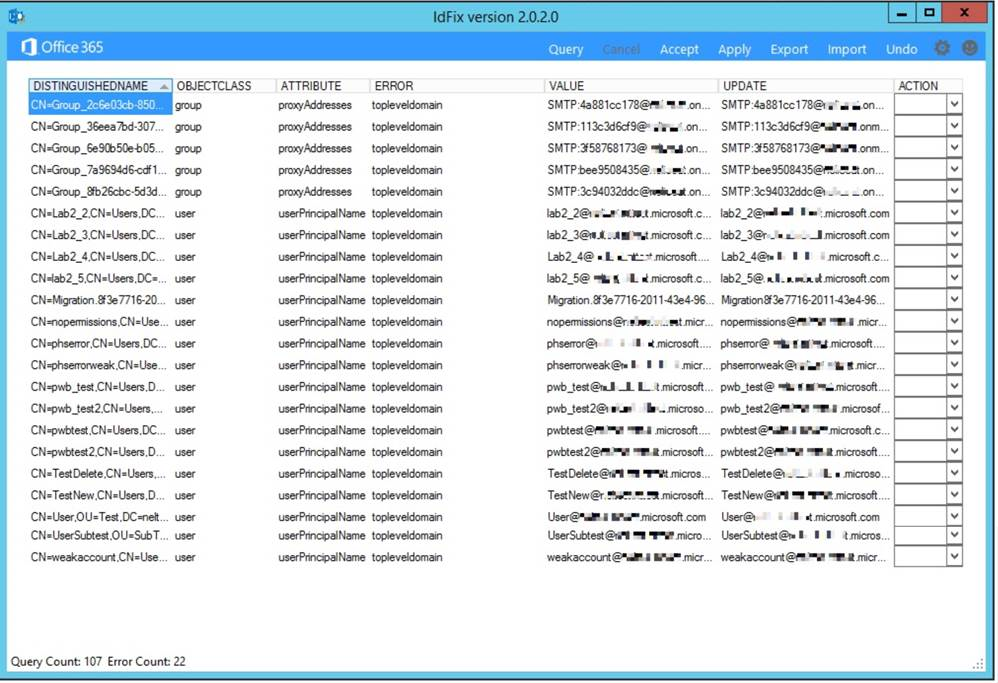
After the process has been completed you will be shown all the problems you might have with your environment, if any.

Screen shot of the tool running
Image from https://microsoft.github.io/idfix/operation/

If no errors are shown, or you are confident you can work around them, you can begin the synchronization.

Links:

Set up synchronization:

https://docs.microsoft.com/en-us/microsoft-365/enterprise/set-up-directory-synchronization?view=o365-worldwide

Microsoft guide on how to use IdFix:

https://microsoft.github.io/idfix/operation/

Enable Known Folder Move using regedit – OneDrive

Known Folder Move is a “new” functionality in OneDrive that enables you to seamlessly recreate the same user experience across multiple devices .

Expecially useful in a Windows Virtual Desktop / VDI environment, it automatically syncs all the “Known Folders” (Desktop, Documents, Pictures etc.) when a user logs in.

To enable it via Registry Editor you’ll first have to get your tenant ID. Find it here under “Directory ID”:

https://portal.azure.com/#blade/Microsoft_AAD_IAM/ActiveDirectoryMenuBlade/Properties

Then you can proceed to create a new string value in HKEY_LOCAL_MACHINE\SOFTWARE\Policies\Microsoft\OneDrive

Name: KFMSilentOptIn

Value: Insert your Office 365 Tenant ID

How to cancel a reservation – Azure

To cancel a reservation you have to have specific permissions on the reservation order. The permissions are not inherited from the subscription, so… contact who created the reservation (or just open a ticket with the Azure Engineers).

Once you have the right account, (or you’ve been given the permissions) go to the reservations tab in the Azure Portal. It’s best to have at least a couple of people who have permissions on the resource. To get to the reservations tab follow the link below:

https://portal.azure.com/#blade/Microsoft_Azure_Reservations/ReservationsBrowseBlade

Select the reservation you want to cancel and click on the name of the resource.

From the top click on “Refund”

Click on return reserved instances once you see the “Refund subtotal” pop up

Please refer to the following docs for additional informations:

https://docs.microsoft.com/en-us/azure/cost-management-billing/reservations/exchange-and-refund-azure-reservations

https://docs.microsoft.com/en-us/azure/cost-management-billing/reservations/manage-reserved-vm-instance#add-or-change-users-who-can-manage-a-reservation

Project Freta

Project Freta is a newly announced offer from Microsoft, which aims at discovering any malware or rootkit running on Linux systems, by conducting memory forensic analysis automatically. The analysis is conducted at no cost and is very easy to extrapolate the data, democratizing the forensic process.

Project Freta was designed and built with survivor bias at its core. It is a security project designed from first principles to drive the cost of sensor evasion as high as possible and in many cases render evasion technically infeasible.

Mike Walker
https://www.microsoft.com/en-us/research/blog/toward-trusted-sensing-for-the-cloud-introducing-project-freta/

At the moment there are more than 4,000 supported kernel versions.

The process is very useful because the malware cannot “hide” himself, since the image processing system is non-intrusive to the VM, giving analysts a complete view on what’s running and potentially bad for the server.

The supported memory images formats are the following:

  • vmrs
  • lime
  • core
  • raw

The memory can be captured using various tools, such as:

  • vmss2core (VMware)
  • Hyper-V Manager
  • AVML 

The tool works by analyzing an image uploaded on the cloud. Once the image has been acquired, you can let the program scan it.

This image has an empty alt attribute; its file name is image-1.png

Please refer to this guide to extract the images: https://docs.microsoft.com/en-us/security/research/project-freta/how-to-capture-an-image

Read the full announcement: https://www.microsoft.com/en-us/research/blog/toward-trusted-sensing-for-the-cloud-introducing-project-freta/

Documentation: https://docs.microsoft.com/it-it/security/research/project-freta/

Move resources request is blocked by an Azure Backup job.

Error message:

The move resources request contains resources like “*OsDisk*” that are being backed up as part of a Azure Backup job. Browse the link https://aka.ms/vmbackupmove for information

If you encounter this error check if the VM’s backup is stopped. If it’s stopped you need to remove the istant snapshot that has been created by the system:

  1. Find the location of your virtual machine.
  2. Find a resource group with the following naming pattern: AzureBackupRG_<location of your VM>_1. For example, AzureBackupRG_westus2_1
  3. In the Azure portal, check Show hidden types.
  4. Find the resource with type Microsoft.Compute/restorePointCollections that has the naming pattern AzureBackup_<name of your VM that you're trying to move>_###########.
  5. Delete this resource. This operation deletes only the instant recovery points, not the backed-up data in the vault.
  6. After the delete operation is complete, you can move your virtual machine.

List source: https://docs.microsoft.com/en-us/azure/azure-resource-manager/management/move-limitations/virtual-machines-move-limitations#portal

VM has reported a failure when processing extension ‘joindomain’ – AVD

If you encounter this error while creating a new VM from the host pool wizard, try following these suggestions to solve the issue, or at least drill down on the problem:

  • Check whether you can resolve your domain from your VNET
  • Check what DNS Servers are configured on your VNET, correct accordingly (follow this guide: Change VNet DNS Servers)
  • Check if you have permissions to join the domain using the credentials you provided
  • Check if the specified credentials are correct
  • Check if the domain to join (and the OU), specified in the wizard, is correct (parameters in the JSON: domainToJoinouPathexistingDomainUPNexistingDomainPassword).
  • Try to join a VM to the domain from the same network and subnet

If all the above are met, you should be able to join the VM successfully to the domain. If not, at least you should have more context to further troubleshoot the issue.

Microsoft Assessment and Planning (MAP) Toolkit – Minimum user requirements to run a scan

To scan the servers / PCs using the MAP Toolkit, you will need an AD user with administrative privileges on all the components to scan.


This will be enough if you need a report of what’s installed on a series of servers/clients, their roles, and all “local” related queries, or basic AD queries.

For Exchange related queries, you will need an Exchange Admin or Domain Admin.
Please refer to the following TechNet page for the full requirements:


https://social.technet.microsoft.com/wiki/contents/articles/17807.map-toolkit-credentials-required.aspx

Enable SMTP AUTH for a mailbox – Office 365

If you try to set up a printer / external device with SMTP you might encounter an authentication error.

This is caused by the fact that Microsoft now disables SMTP AUTH for the tenant and the new mailboxes created on Office 365 by default.

To enable SMTP AUTH for a mailbox follow this steps:

  • Go into Users
  • Click Active Users
  • Select the user
  • Click Mail
  • Click Manage email apps
  • Enable Authenticated SMTP by flagging it
  • Save

This might take a couple of hours before it’s activated.

To check where it’s enabled use the following command:

Get-CASMailbox

If it returns False under SmtpClientAuthenticationDisable, then it’s enabled.

To enable it for the whole organization send the following PS command:

Set-TransportConfig -SmtpClientAuthenticationDisabled $true

Activate Azure Update Management for on premise servers using Log Analytics

Requirements:
i. Log Analytics workspace
ii. Azure Automation Account

From the Log Analytics Workspace, click Connect a data source
Save the Workspace ID and Workspace key
Install the agent on the server, providing the Workspace ID and Key found in the workspace

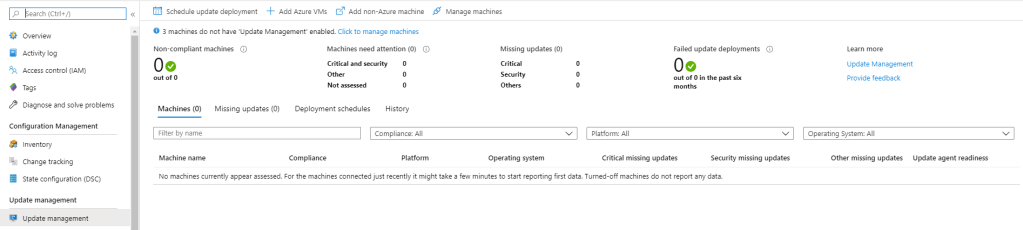
Go into the automation account, then from the left into update management
Enable update management on the VM by clicking on “Click to manage machines”

You can then see the missing updates and create an update deployment

Please allow up to 24hrs for all the servers to show up (it usually takes about an hour)

Quick troubleshooting for generic OneDrive issues

Here are some common troubleshooting steps that can be used if you are experiencing issues with OneDrive:

  1. Exit the OneDrive Desktop App and open it again
  2. Check for Disk space in the local PC. Check if the storage quota on OneDrive has been reached
  3. Check if the file path has exceeded the 255 characters quota or the 15 GB quota
  4. Right click the OneDrive icon, then go under Settings, Office and deselect “Use Office to sync Offices files that i open”. Save, exit, then enable it again.
  5. Reset OneDrive using the following command. No data will be lost: %localappdata%\Microsoft\OneDrive\onedrive.exe /reset
  6. If after the reset you don’t see any folder listed as synchronized on the device start the synchronization again from SharePoint. After you synchronize the first one the others will pop back up in the synchronized folders tab.